
How to Upload Files to Google Forms Without Login
Google Forms' built-in File upload question requires every respondent to sign in to a Google account. To accept files without login, add a Short answer or Paragraph question, connect the form to CustomGForm, and attach the File upload addon to that question. Respondents can then upload up to 10 files per submission—up to 10 MB each on the Starter plan or 100 MB on Pro—without a Google account, and you control which file types are allowed.
This guide uses the File Upload addon for text fields. It works with Short Answer and Long Answer fields.
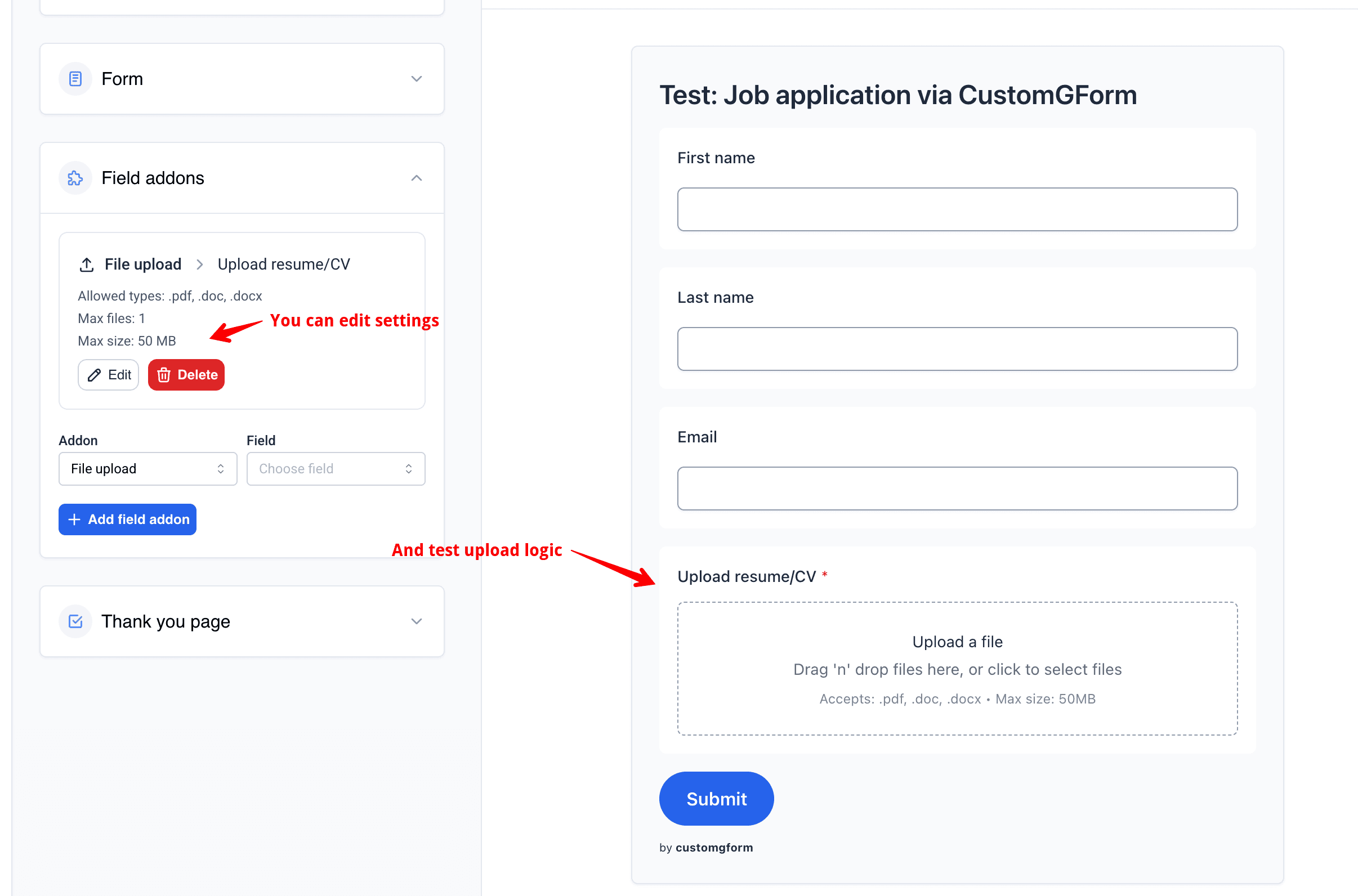
Collect candidate details and resumes in a branded application form.
What you need before you start
- A Google Form with at least one Short Answer or Long Answer field
- A CustomGForm project connected to that form
- Access to the CustomGForm dashboard
How Do You Upload Files to Google Forms Without Login? (Step-by-Step)
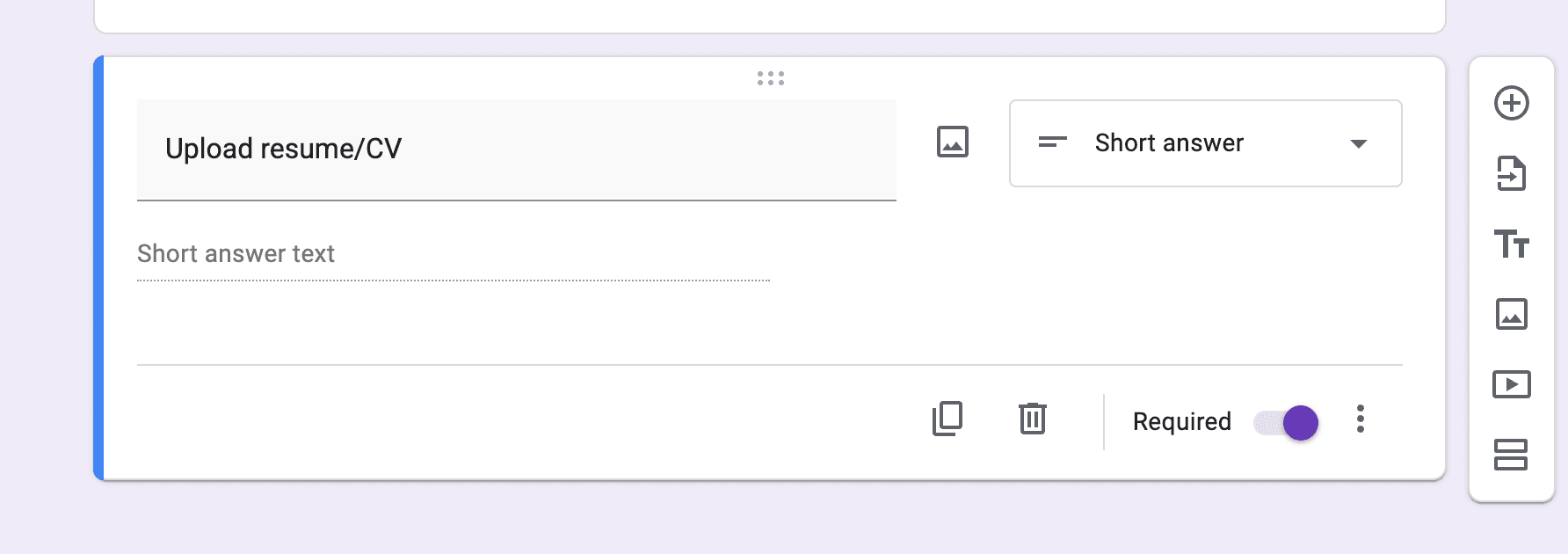
Step 1: Add a text field in Google Forms
- Open your Google Form.
- Add a Short answer or Paragraph question.
- Give the field a clear label, such as "Upload resume/CV".
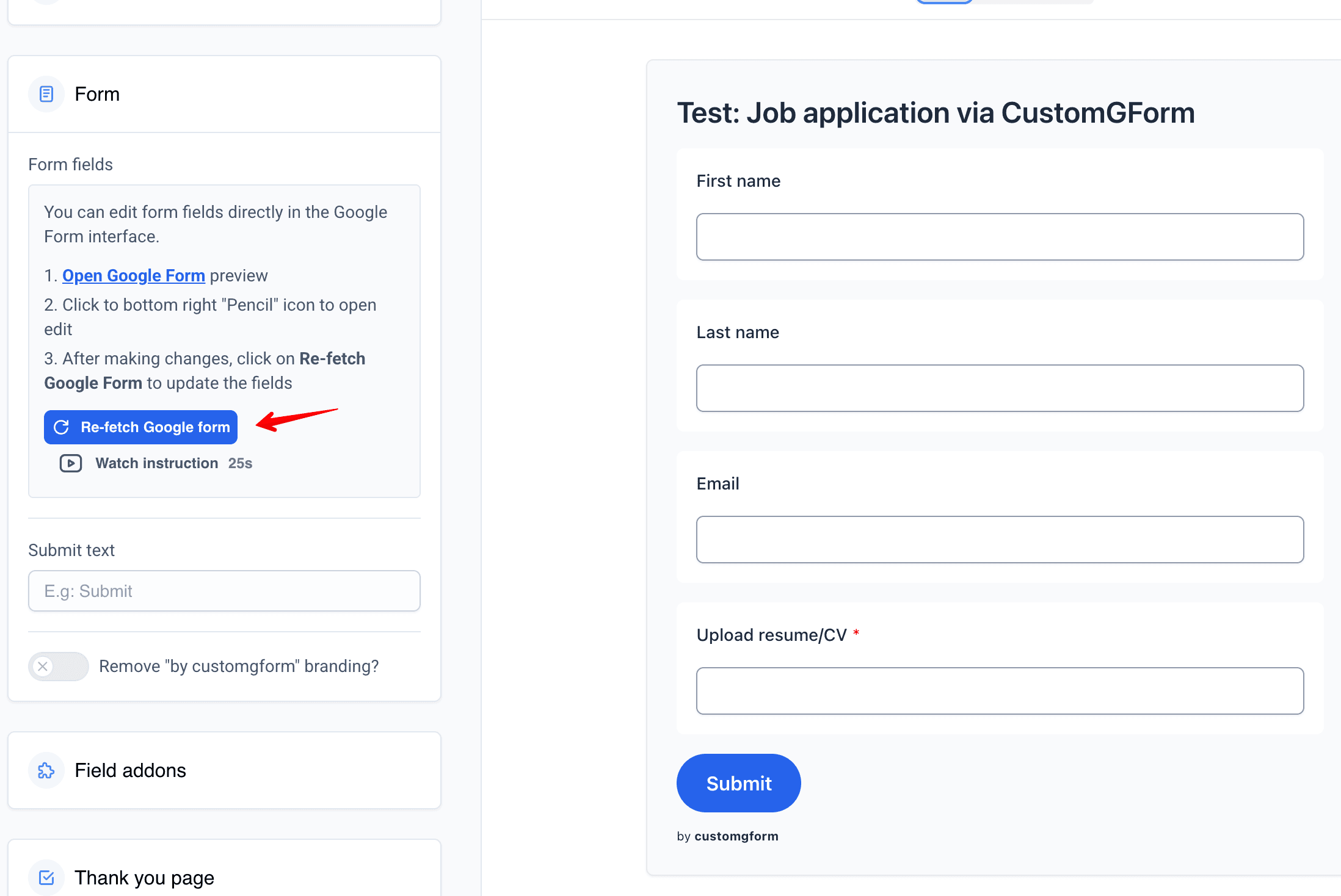
Step 2: Sync your form in CustomGForm
- Go to the CustomGForm dashboard.
- Open the form you want to update.
- Click Refetch Google Form to pull the latest fields.
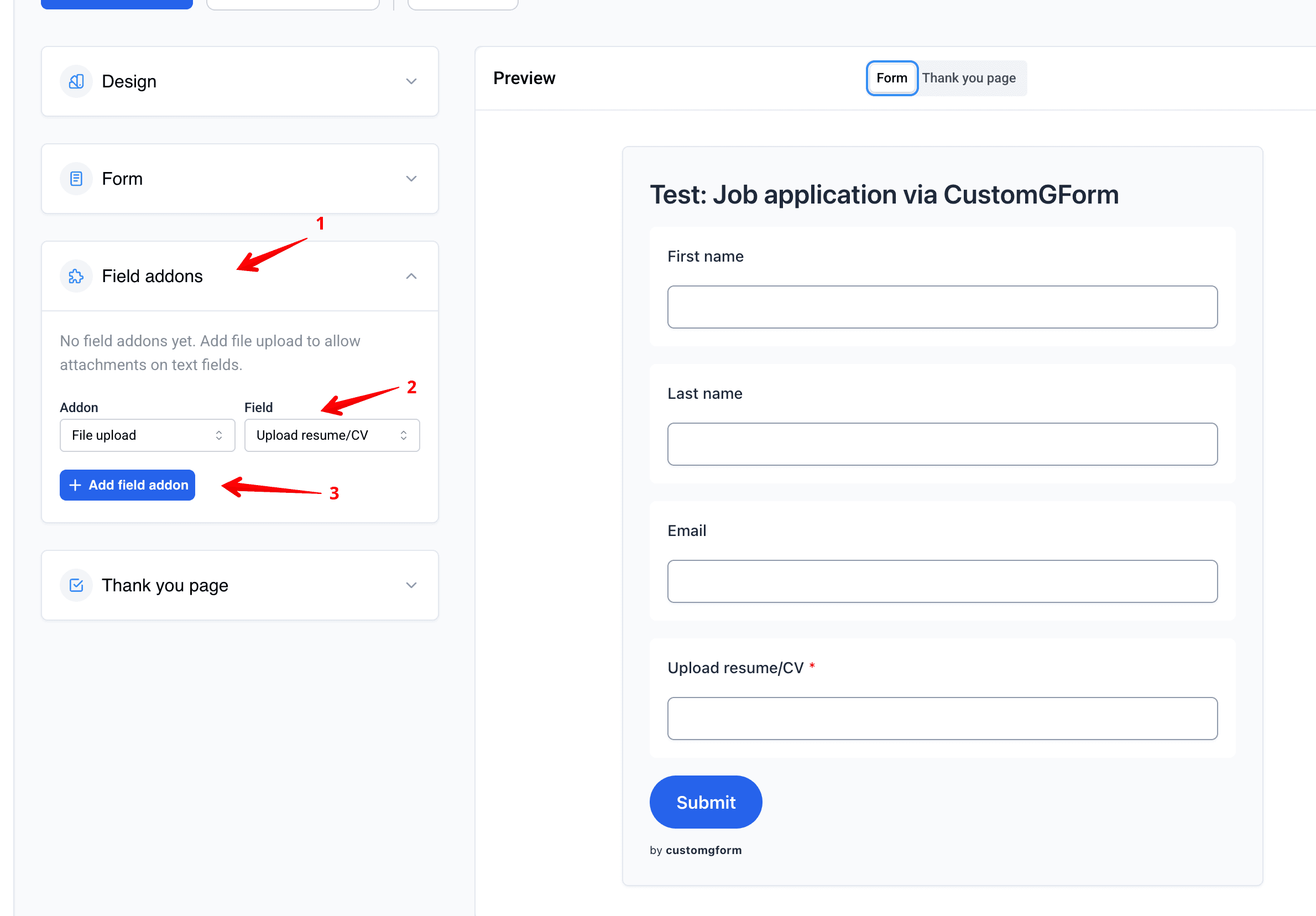
Step 3: Add a File Upload addon
- Open Field addons.
- Choose File upload as the addon type.
- Select the field you just created.
- Click Add field addon.
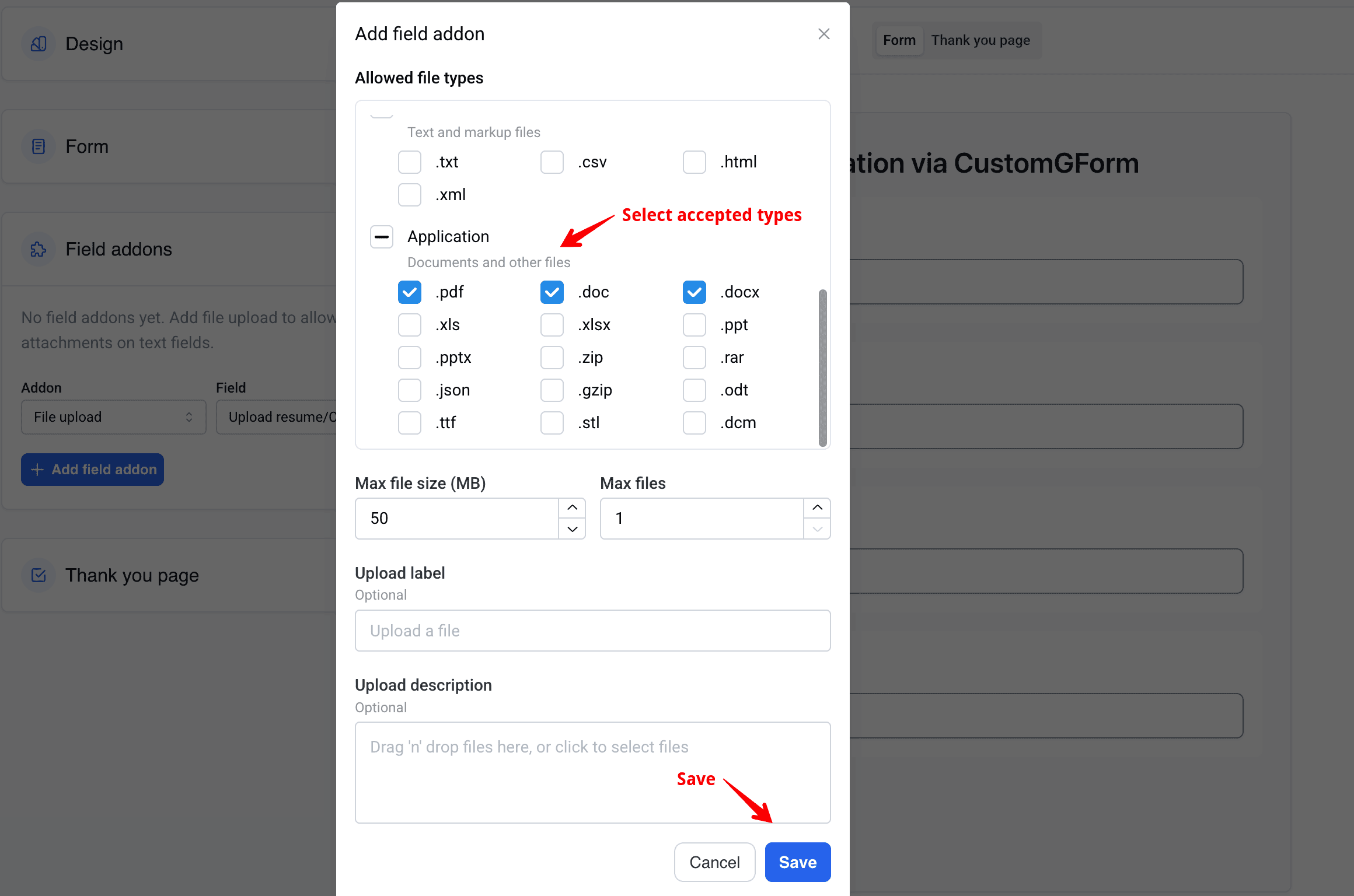
Step 4: Configure upload settings
In the File Upload addon modal, configure:
- Allowed file types (choose entire groups or specific extensions)
- Max file size (MB) up to 10 MB on Starter and up to 100 MB on Pro
- Max files from 1 to 10 files per submission
- Optional Upload label and Upload description text
Click Save to apply the addon.
Step 5: Test your form
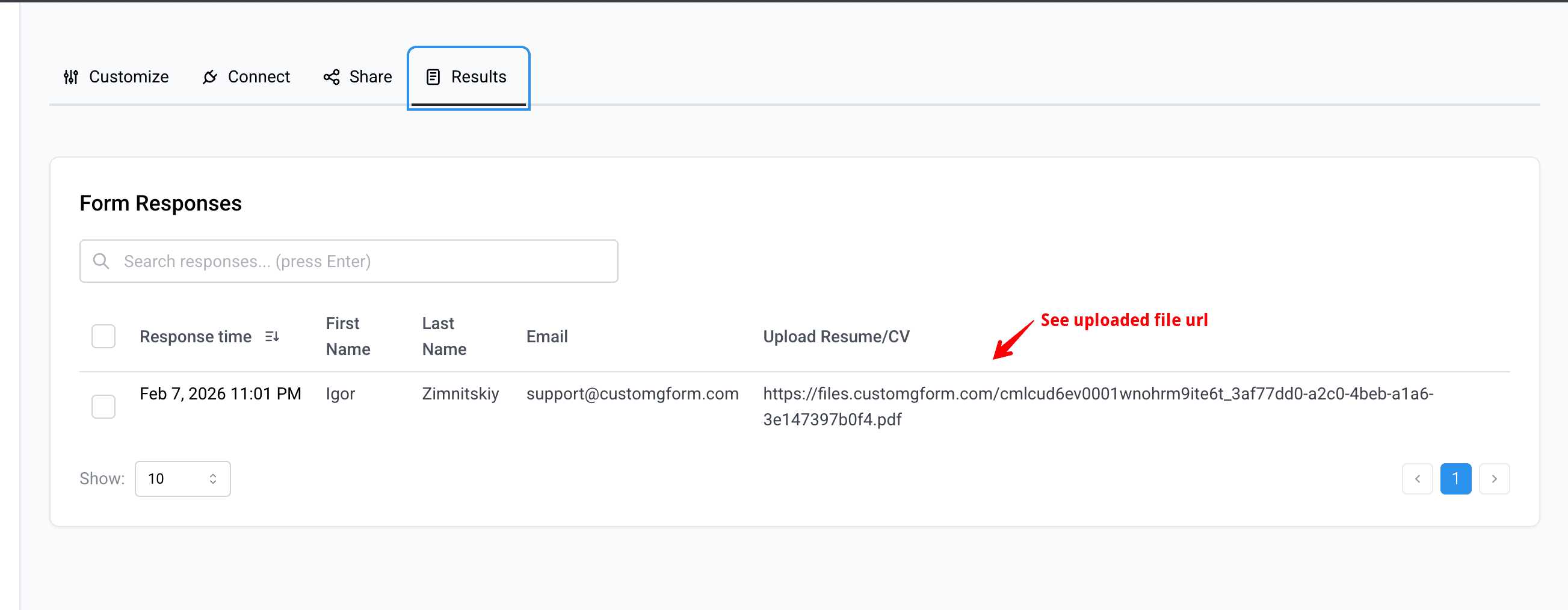
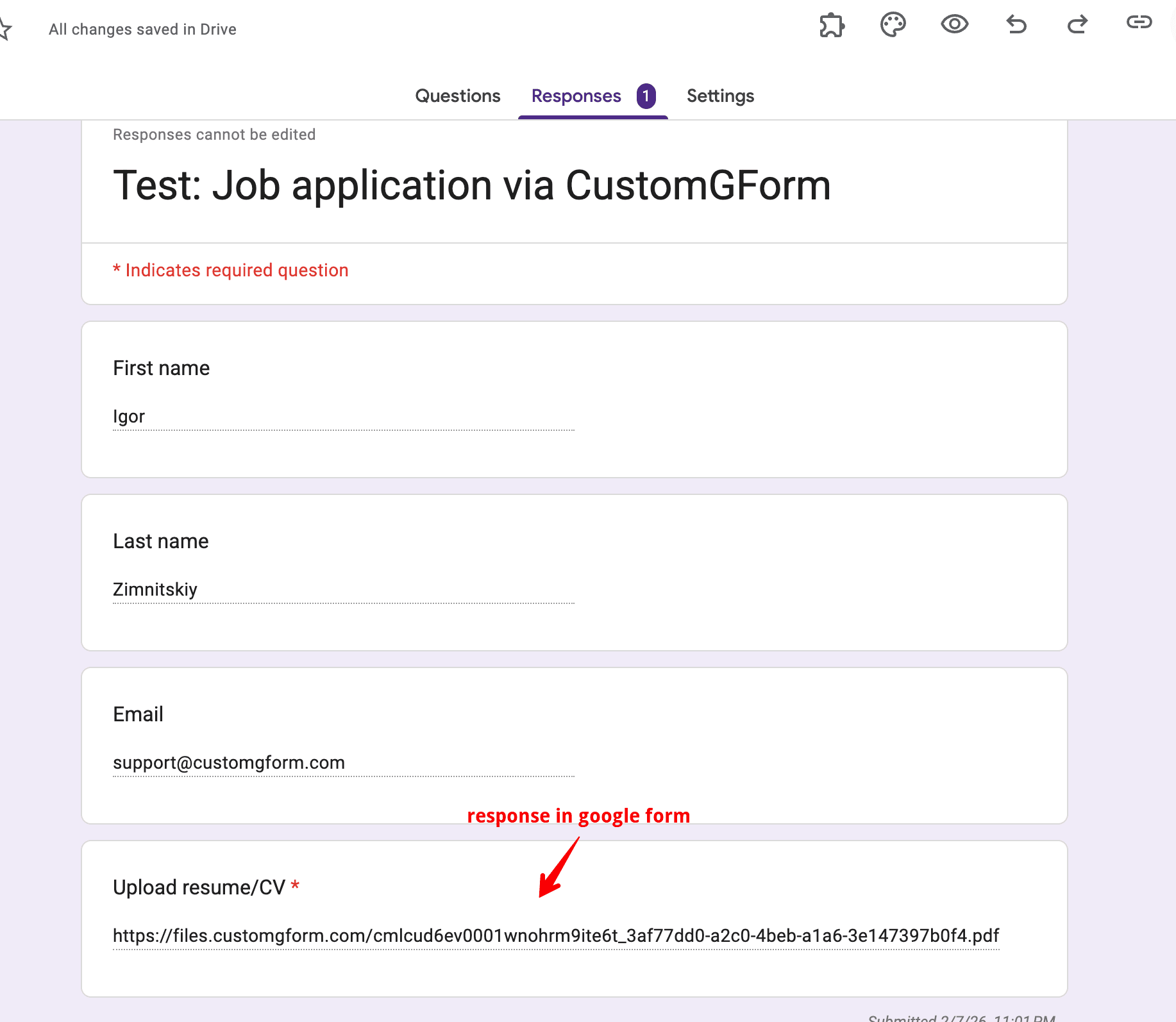
Check your CustomGForm preview and submit a test response with an attachment. Then verify the uploads in both places:
- CustomGForm Results tab to see the uploaded file linked in your form responses.
- Google Forms Responses tab to confirm the submission is stored in Google as well.
Supported file types
The File Upload addon supports grouped file types. You can enable a full group or pick individual extensions. The table below is generated from the addon constants used in the app.
| Option | Type | Description |
|---|---|---|
| Image | extensions | All image files. .jpg, .jpeg, .png, .gif, .svg, .heic, .webp, .bmp, .psd |
| Video | extensions | All video files. .mp4, .mov, .webm |
| Audio | extensions | All audio files. .mp3, .wav, .m4a |
| Text | extensions | Text and markup files. .txt, .csv, .html, .xml |
| Application | extensions | Documents and other files. .pdf, .doc, .docx, .xls, .xlsx, .ppt, .pptx, .zip, .rar, .json, .gzip, .odt, .ttf, .stl, .dcm |
Selecting a group automatically selects all its extensions. You can also mix and match individual extensions to create a custom list.
How the addon works behind the scenes
- The addon attaches to a Short Answer or Long Answer field.
- It renders a file upload UI in the CustomGForm form.
- Upload limits are enforced by plan:
- Starter: up to 10 files per submission, up to 10 MB per file, 2 GB total storage.
- Pro: up to 10 files per submission, up to 100 MB per file, 20 GB total storage.
- Hobby: file uploads are not available.
- Allowed file types are controlled by the selected extensions.
Tips and best practices
- Use clear labels like "Upload resume" or "Attach receipt".
- Keep max size aligned with your storage limits and user bandwidth.
- If you need multiple uploads, set Max files to 2 or more and update the label to explain the limit.
Troubleshooting
Uploads are blocked
- Make sure at least one file type is selected.
- Confirm the file extension is included in the allowed list.
Field does not appear in the addon list
- The field must be Short Answer or Long Answer.
- Refetch the form after making changes in Google Forms.
Changes not showing on the live form
- Save the addon settings and refresh the form preview.
- Clear cache or open the form in an incognito window.
Conclusion
You now have a public Google Form that accepts file uploads without requiring a login. Use the File Upload addon to control file types, sizes, and counts while keeping a clean, branded form experience.
Last updated on
How to Collect Signatures with Google Forms (Step-by-Step)
Learn how to collect digital signatures with Google Forms without forcing respondents to print, scan, or log in. Add a drawing canvas with instant Google Sheets sync.
How to Add Dark Theme Support to a Google Form
Step-by-step guide to adding dark mode support to a Google Form with CustomGForm — build a dark palette, show a theme toggle, and match your site theme.