
File Upload addon for CustomGForm
The File Upload addon lets you accept attachments on a public Google Form without forcing users to sign in. It replaces the native Google Forms file upload requirement with a clean CustomGForm upload UI and gives you full control over file size, file count, and allowed file types.
This addon works with Short Answer and Long Answer fields.
What this addon is for
- Collect resumes, receipts, or documents on public forms
- Keep upload limits aligned with your plan and storage
- Let respondents submit files without Google login prompts
Quick setup
This page focuses on configuring the addon in CustomGForm. For a full end-to-end walkthrough (including Google Forms setup), see: /docs/how-to-guides/how-to-upload-files-to-google-forms-without-login
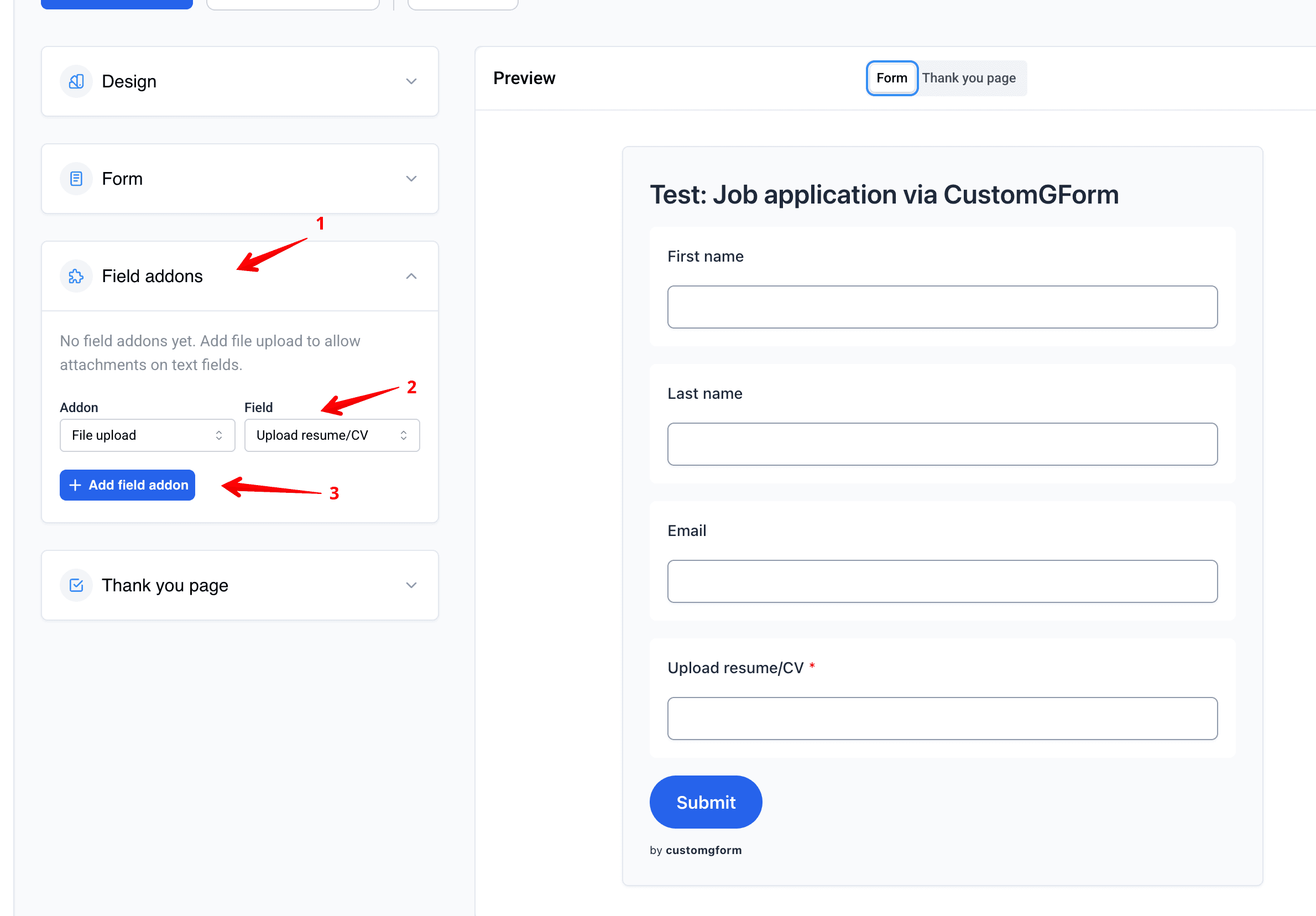
Step 1: Add the File Upload addon
- Open Field addons.
- Choose File upload as the addon type.
- Select the field you want to use for uploads (Short Answer or Long Answer).
- Click Add field addon.
Step 2: Configure upload settings
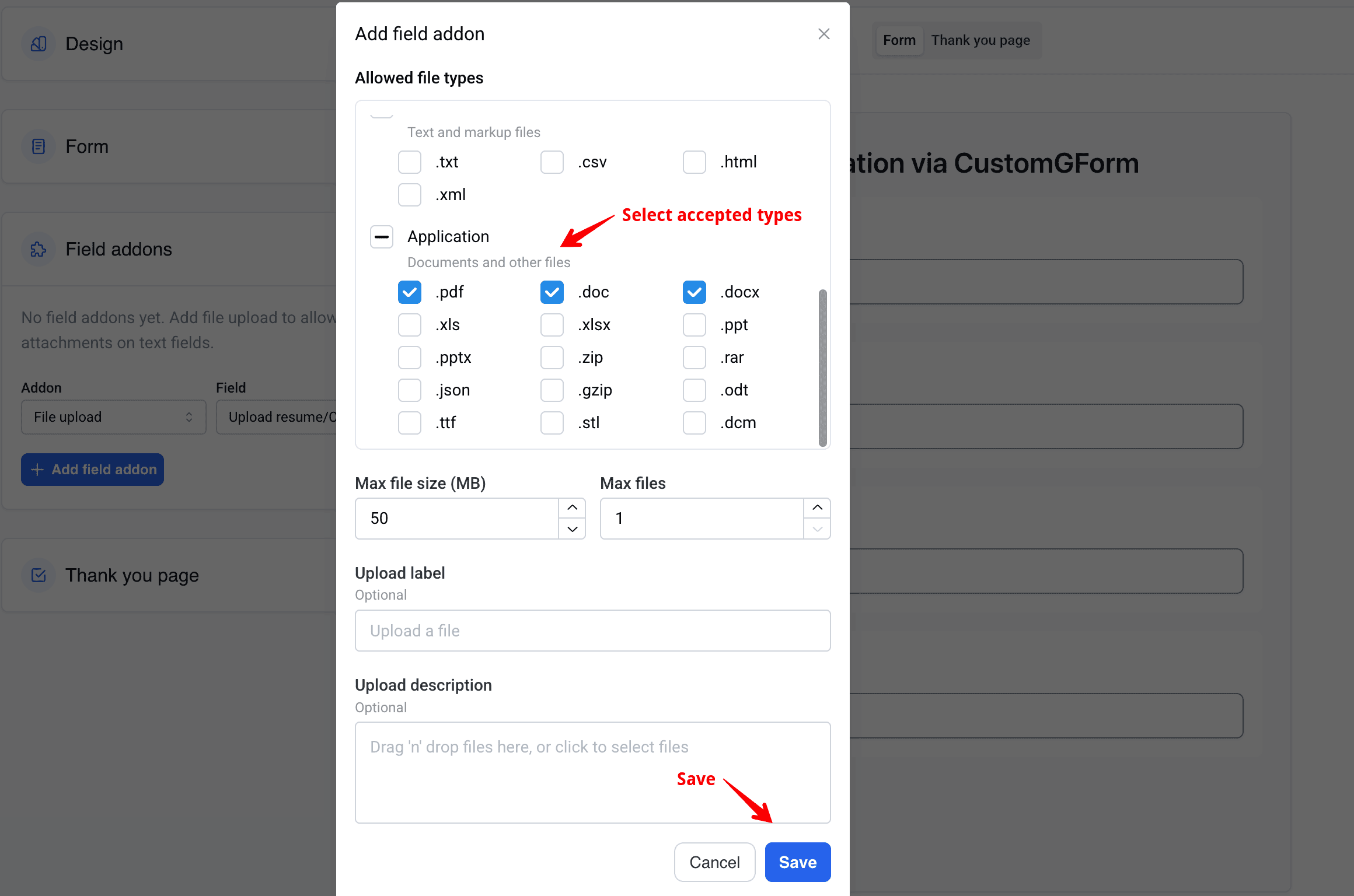
Set your limits and labels:
- Allowed file types (entire groups or specific extensions)
- Max file size (MB) from 1 to 100 (Hobby: up to 4 MB)
- Max files from 1 to 10 (Hobby: 1 file)
- Optional Upload label and Upload description
Click Save to apply the addon.
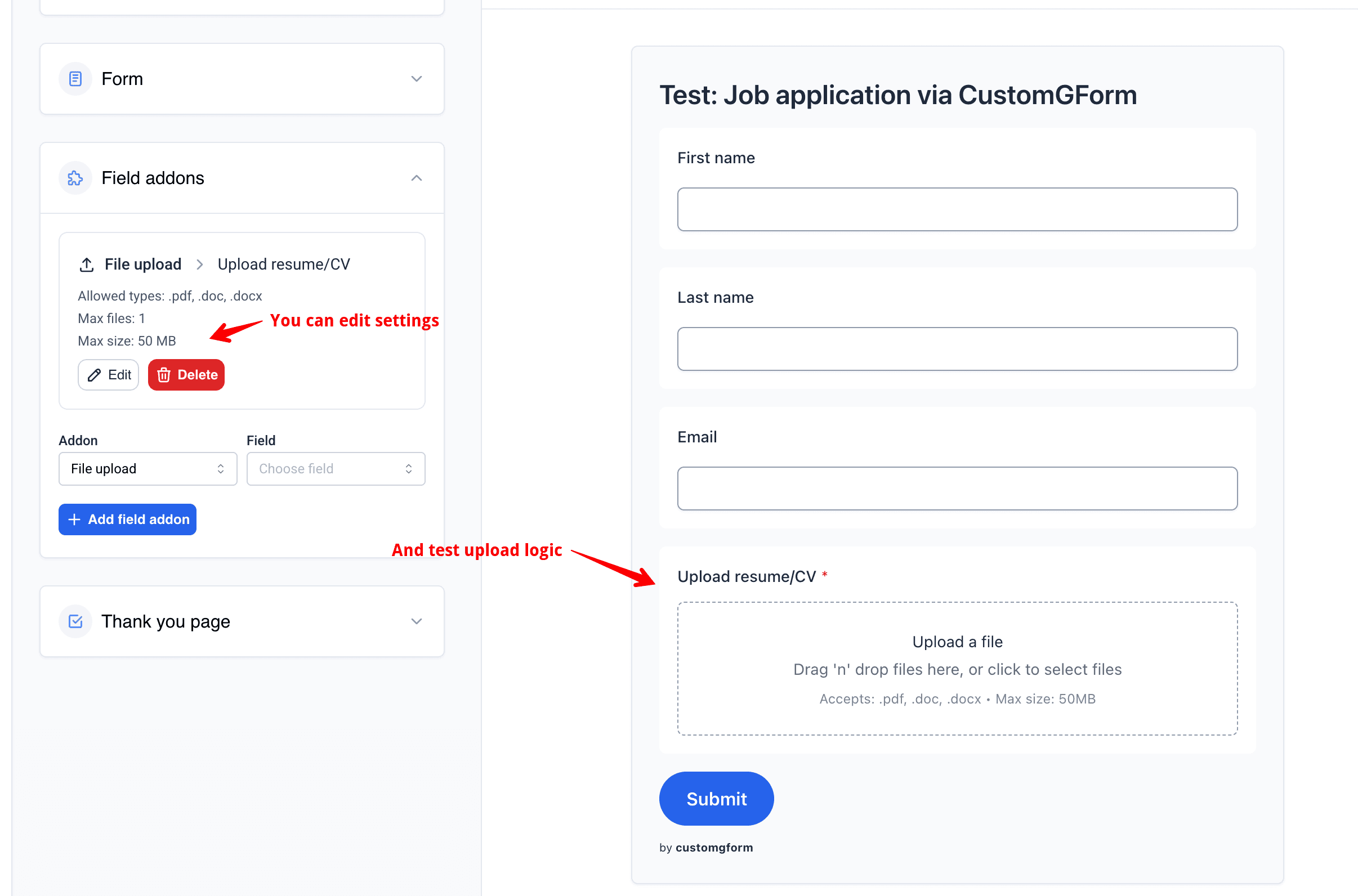
Step 3: Test a submission
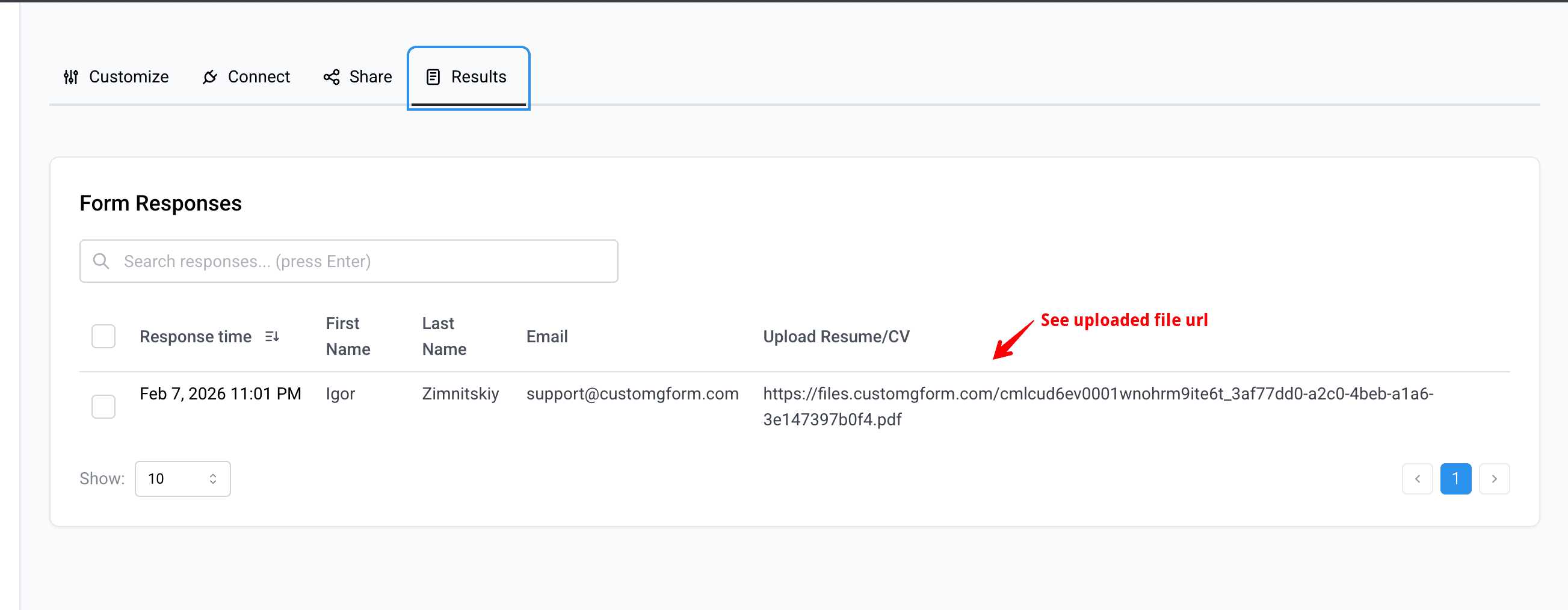
Submit a test response with a file and verify the results in CustomGForm:
- Open the live form and upload a file.
- In the CustomGForm dashboard, open Results and confirm the uploaded file link is saved.
Supported file types
The addon supports grouped file types. You can enable a full group or pick individual extensions. The table below is generated from the addon constants used in the app.
| Option | Type | Description |
|---|---|---|
| Image | extensions | All image files. .jpg, .jpeg, .png, .gif, .svg, .heic, .webp, .bmp, .psd |
| Video | extensions | All video files. .mp4, .mov, .webm |
| Audio | extensions | All audio files. .mp3, .wav, .m4a |
| Text | extensions | Text and markup files. .txt, .csv, .html, .xml |
| Application | extensions | Documents and other files. .pdf, .doc, .docx, .xls, .xlsx, .ppt, .pptx, .zip, .rar, .json, .gzip, .odt, .ttf, .stl, .dcm |
Selecting a group automatically selects all its extensions. You can also mix and match individual extensions to create a custom list.
How it works
- The addon attaches to a Short Answer or Long Answer field.
- CustomGForm renders a secure file upload UI in your public form.
- Upload limits are enforced by plan:
- Hobby: max 1 file, max 4 MB per file, 100 MB total storage.
- Pro: max 10 files, max 100 MB per file, 20 GB total storage.
- Allowed file types are controlled by the selected extensions.
Tips and best practices
- Use clear labels like "Upload resume" or "Attach receipt".
- Keep max size aligned with your storage limits and user bandwidth.
- If you need multiple uploads, set Max files to 2 or more and update the label to explain the limit.
Troubleshooting
Uploads are blocked
- Select at least one file type.
- Confirm the file extension is included in the allowed list.
Field does not appear in the addon list
- The field must be Short Answer or Long Answer.
- Refetch the form after making changes in Google Forms.
Changes not showing on the live form
- Save the addon settings and refresh the form preview.
- Clear cache or open the form in an incognito window.
Conclusion
You can now accept file uploads on a public Google Form without requiring a Google login. Use the File Upload addon to control file types, sizes, and counts while keeping a clean, branded form experience.