
How to Add Dark Theme Support to a Google Form
Google Forms doesn't offer a dark mode. Whatever the visitor's device is set to, the form renders on a white background — so an embedded Google Form glows in the middle of a dark website, and anyone filling it in at night gets a face full of white.
With CustomGForm you keep your existing Google Form and add a second, dark palette to it. Visitors on a device set to dark mode see the dark version automatically, respondents can flip the scheme with an in-form toggle, and your site can pin the scheme so the form always matches the page around it.
Prerequisite
Before starting, connect your Google Form to your CustomGForm dashboard.
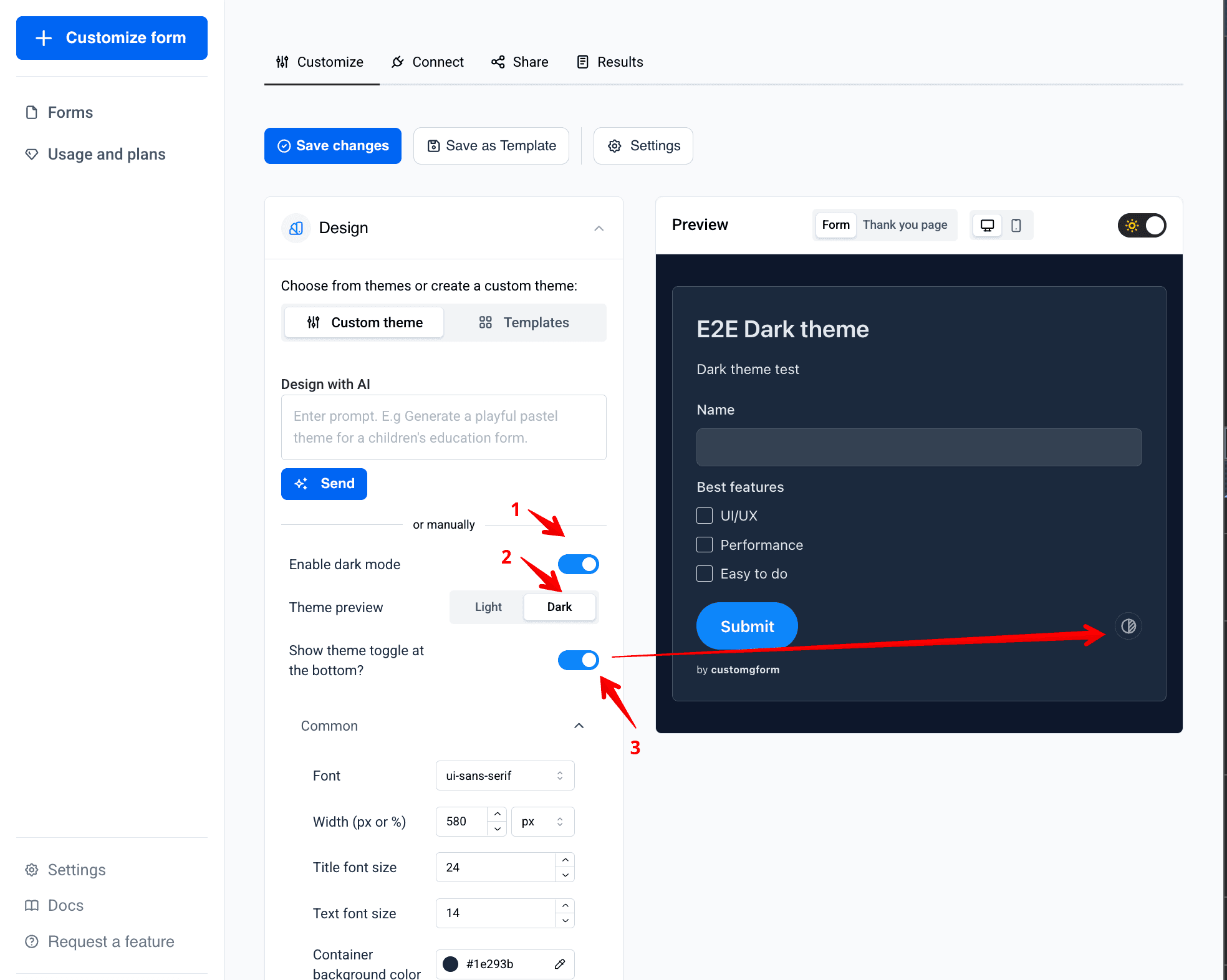
Step-by-step guide
Open your form in the customizer
Log into the dashboard, open the form you want to restyle, and stay on the Customize tab.
Select the custom theme
Expand the Design section and pick Custom theme. Dark mode is a second palette on top of your custom colors, so it only appears here — not for the ready-made templates.
Turn on "Enable dark mode"
Flip the Enable dark mode switch — marked 1 in the screenshot above. CustomGForm seeds a sensible dark palette for you right away (dark slate background, light high-contrast text, dark inputs and borders), so the form is already usable in dark mode before you change a single color.
Switch the preview to Dark
Set Theme preview to Dark (2 in the screenshot). The live preview turns dark, and every color control in the panel below now edits the dark palette instead of the light one. The sun/moon switch above the preview does the same thing. Switch back to Light at any time — the two palettes are stored separately and neither overwrites the other.
Tune the dark colors
Work through the color groups and adjust anything that doesn't fit your brand. The ones worth checking first:
- Container background and text color — the overall contrast of the form
- Control background and control border — inputs, textareas, and selects
- Primary button background / text — your accent color usually needs to be lighter in dark mode
- Link color — dark navy links are unreadable on a dark background
- Error colors — red on dark needs a lighter tint to stay legible
In a hurry? Type a prompt in Ask AI while dark mode is on and CustomGForm generates a matching light and dark palette in one go.
Decide whether respondents can switch
Show theme toggle at the bottom? (3 in the screenshot) controls the small toggle button next to the Submit button — the preview shows exactly where it lands. Leave it on to let respondents pick a scheme themselves — their choice is remembered for that form on their next visit. Turn it off if you'd rather the form always follow the system setting or your own switcher.
Save changes
Click Save changes. The dark palette goes live with your form, on every page where it's embedded.
Pin the scheme from your website
By default the form follows the visitor's device setting. If your site has its own light/dark theme,
pin the form's scheme with the data-theme attribute (or the theme prop in React):
<div data-customgform="YOUR_FORM_ID" data-theme="dark"></div>
<script src="https://cdn.customgform.com/cgf.js" async></script>| Option | Type | Description |
|---|---|---|
| auto | default | Follow the visitor's system setting. Same as leaving the attribute out. |
| dark | string | Always start in dark mode. |
| light | string | Always start in light mode. |
Sync the form with your own theme switcher
The widget watches its data-* attributes, so updating the attribute when your site's theme changes is
enough — the form re-renders in the new scheme:
const setFormTheme = (isDark) => {
  document
    .querySelectorAll('[data-customgform]')
    .forEach((el) => el.setAttribute('data-theme', isDark ? 'dark' : 'light'));
};
In React, pass the value your app already keeps for its own theme:
<CustomGForm formId="YOUR_FORM_ID" theme={isDark ? 'dark' : 'light'} />A respondent who used the in-form toggle keeps their own choice — it takes priority over
data-theme and over the system setting. Turn the toggle off if you need the scheme to always follow
your site.
A sleek, developer-focused feedback form with dark mode.
Troubleshooting
The form is still light after saving. Check that Design → Custom theme is selected and
Enable dark mode is on, then confirm your test device is actually in dark mode — with data-theme
absent or set to auto the form follows the system setting, not your site's CSS.
The toggle button doesn't show up. It only renders when dark mode is enabled and Show theme toggle at the bottom? is on. It sits next to the Submit button at the end of the form.
Only some colors changed. Colors you never touched in the dark palette keep their default dark values, and anything edited while Theme preview was on Light went into the light palette. Switch the preview to Dark and re-check the groups listed above.
The form keeps opening in the scheme I picked while testing. Clicking the in-form toggle saves that
choice in your browser, and a saved choice beats data-theme. Clear the site's local storage (the
cfg.storage.config entry) or test in a private window.
My dark colors disappeared. Saving with Enable dark mode off removes the dark palette from the form. Re-enabling it starts again from the default dark colors.
Frequently asked questions
Does Google Forms have a dark mode?
Not for the form itself. The Google Forms editor follows your Google account theme, but a published or embedded form always renders light. A dark version has to come from a layer on top, like CustomGForm.
Do I need to create a second Google Form for dark mode?
No. It's the same Google Form and the same questions — you add a second color palette in CustomGForm, and the widget picks the palette that fits the visitor.
Does dark mode change the responses I collect?
No. Dark mode is purely presentational. Answers are stored by CustomGForm and passed on to your Google Form exactly as before, with the same fields and the same destination spreadsheet.
Will the form respect the visitor's device setting automatically?
Yes. With no data-theme attribute (or with data-theme="auto"), the widget reads
prefers-color-scheme and also follows it live if the visitor changes their system setting while the
page is open.
Does dark mode work in popup mode?
Yes. Both the standard inline embed and the popup (modal) embed use the dark palette.
Do I need to write CSS?
No. The palette is edited with color pickers in the customizer. CSS is only useful if you want to style
your own page based on the form's scheme — the dark state exposes a cgf__theme-dark class you can
hook into.
Learn more
- Dark theme — what the feature covers
- Theme customizer — the colors, fonts, and spacing both palettes share
- How to use theme templates — reuse a light + dark brand theme across forms
Last updated on
How to Upload Files to Google Forms Without Login
Allow respondents to upload files, resumes, and photos to Google Forms without requiring a Google sign-in. Set custom size and file type limits with CustomGForm.
How to Save and Reuse Theme Templates for Google Forms
Save your favorite Google Forms colors, fonts, and styles into reusable theme templates to apply across all your forms.