
How to Add a QR Code Scanner to Google Forms
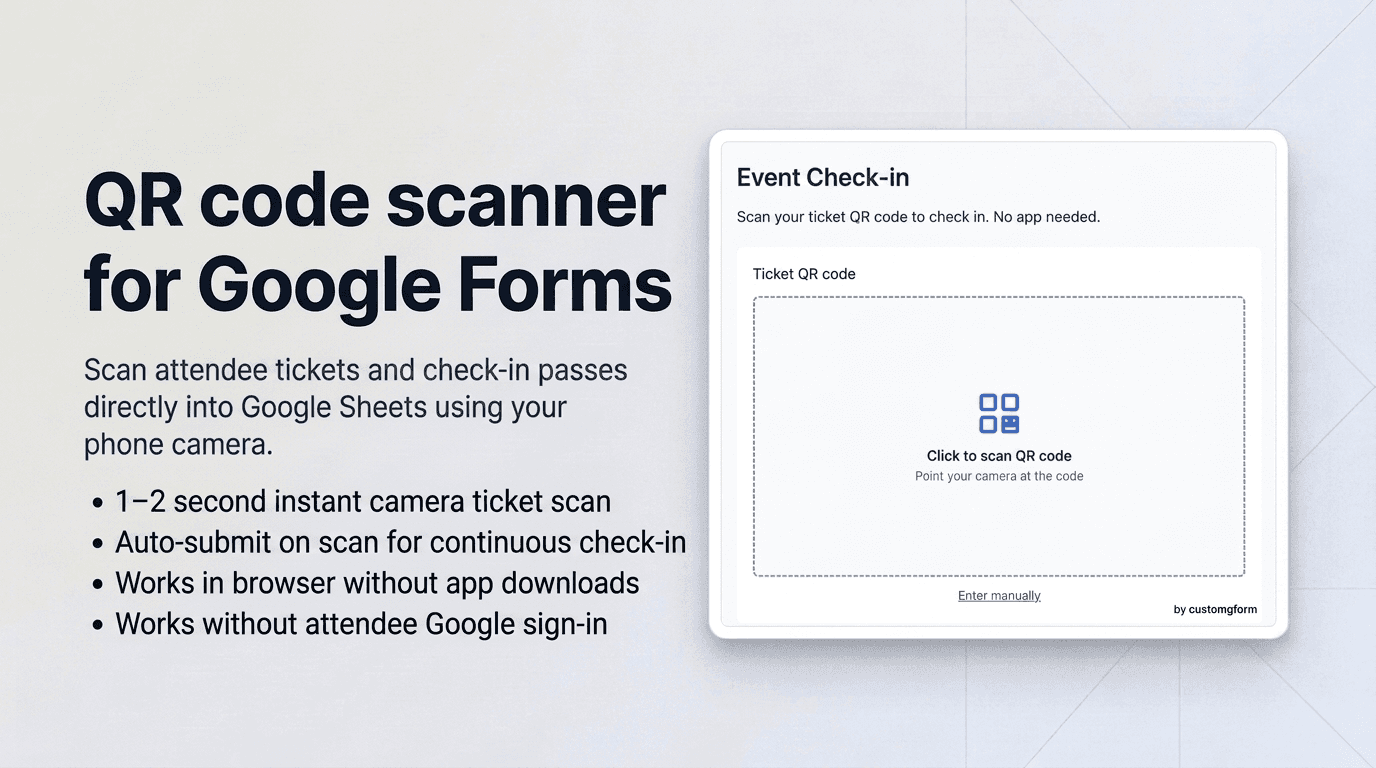
Google Forms is the go-to solution for RSVPs, registrations, and surveys. However, when the day of your event arrives, Google Forms provides no native way to scan attendee QR codes with a phone camera.
Event coordinators and reception staff frequently face stressful check-in challenges:
- Searching spreadsheets manually by typing attendee names or ticket IDs one by one, creating long queues at the registration desk.
- Requiring volunteers to install complex scanner apps that don't connect directly to your Google Sheet, risking synchronization errors or lost data.
- Renting expensive event management software that locks your data behind proprietary platforms when all you need is a quick scan that logs who has arrived.
Using CustomGForm, you can add an instant, camera-based QR Code Scanner to any Google Form. Staff can open your form on their smartphone, tap "Scan QR code", and verify tickets in under two seconds. The decoded ticket ID is immediately logged in your connected Google Sheet.
Scan attendee QR codes at event entrances with automatic Google Sheets verification.
Watch a quick demo of setting up and scanning QR codes directly into Google Forms.
Google Forms Native vs CustomGForm QR Code Scanner
| Feature | Native Google Forms | CustomGForm QR Code Scanner |
|---|---|---|
| Camera QR Code Scanning | ❌ None (Manual typing only) | ✅ Yes (Instant rear/front camera scan) |
| Check-in Speed per Person | ~15–30 seconds (typing name/ID) | ⚡ 1–2 seconds (tap & scan) |
| App Download Required? | ⚠️ Often requires separate app | ❌ No (Runs directly in mobile Safari/Chrome) |
| Auto-Submit on Scan | ❌ No | ✅ Yes (Perfect for high-volume check-ins) |
| Google Sheets Real-Time Sync | Text entries only | ✅ Logs scanned pass ID into spreadsheet immediately |
| Manual Backup Option | Manual input only | ✅ Hybrid mode: Camera scan + manual text fallback |
| Audio & Haptic Feedback | ❌ None | ✅ Audio beep & phone vibration on scan |
Practical Applications for Google Form QR Code Scanning
Transforming a Google Form question into a QR code reader unlocks numerous operational benefits:
- Conference & Workshop Check-in: Print QR codes on confirmation emails and scan them at the entrance to record attendee arrivals in real time.
- Classroom & Training Attendance: Scan student or trainee badges to populate attendance logs with exact timestamps.
- VIP & Gala Guest List Access: Rapidly verify guest invites and monitor arrival capacity directly in Google Sheets.
- Asset & Equipment Tracking: Affix weatherproof QR stickers to cameras, tools, projectors, or fleet vehicles for quick check-out logging.
- Visitor & Lobby Sign-in: Scan visitor pre-registration passes at front desks without requiring physical paper logs.
Step-by-Step Guide: Setting Up QR Code Scanning on Google Forms
Follow these simple steps to activate QR code scanning on your Google Form in just a few minutes.
Step 1: Add a Short Answer question in Google Forms
- Open your form in Google Forms.
- Click the (+) Add question button.
- Select Short answer as the question type.
- Name the question clearly (e.g., "Ticket ID", "Pass QR Code", or "Attendee Badge").
- Set the field to Required if a valid scan is necessary to submit.
[!TIP] CustomGForm attaches the scanner to any standard Short Answer question. This ensures Google Forms automatically routes the scanned data into its own column in your linked Google Sheet.
Step 2: Open your form in CustomGForm and attach the QR Code Addon
- Navigate to your CustomGForm Dashboard.
- Select your form (or import it by entering your Google Form link).
- If you just added the question in Google Forms, click Refetch Google Form in the top navigation to sync the updated structure.
- Scroll down to the Field Addons section in the builder.
- Click Add Field Addon and choose:
- Target Field: Choose the Short Answer question created in Step 1.
- Addon Type: Select QR Code Scanner.
Step 3: Configure check-in settings & auto-submit
Adjust the scanner settings based on your check-in workflow:
- Auto-Submit on Scan: Turn this on if you want the form to submit automatically the instant a QR code is recognized. This is ideal for single-step check-in desks where you want maximum speed.
- Allow Manual Entry: Leave this turned on so staff can type the ticket number if an attendee's phone screen is cracked, too dim, or unreadable.
- Audio & Haptic Confirmation: Keep sound and vibration enabled so gate volunteers receive immediate sensory feedback without needing to look down at their phone screen.
- Click Save Addon and Save Form.
Step 4: Distribute the form and begin scanning
- Open the form URL on any mobile device (iPhone, iPad, or Android phone).
- Tap the Scan QR code button.
- Grant camera permission when prompted by your browser.
- Center the attendee's digital or printed QR code within the square viewfinder brackets.
- The code will read in a fraction of a second, confirm with a beep, and save directly to your Google Sheet!
Pro-Tips for High-Volume Event Check-ins
- Use Auto-Submit with Form Loop: When combined with an auto-submit setting and a clean success redirect, volunteers can scan attendee passes continuously with zero extra taps.
- Prevent Duplicate Scans in Google Sheets: Use a simple Google Sheets formula (such as
=COUNTIF(A:A, A2) > 1) in a helper column to highlight any ticket code scanned more than once with conditional formatting. - Adjust Screen Brightness: If scanning tickets displayed on attendees' smartphones, ask attendees to increase their screen brightness if their screen is dim or has a privacy protector.
- Works Without Respondent Sign-in: Your volunteers don't need to log into any Google accounts on their personal devices to run the check-in form.
Frequently Asked Questions
Does the QR scanner work on both iPhones and Android devices?
Yes. The scanner works in any modern mobile browser including Safari on iOS, Chrome on Android, Samsung Internet, and Firefox.
What happens if an attendee’s phone screen is cracked or unreadable?
The scanner includes a built-in manual typing fallback. Staff can close the camera viewfinder and type the alphanumeric ticket code into the text field directly.
Can I scan QR codes on a desktop or laptop?
Yes. If your laptop or desktop has a built-in webcam or external camera, tapping "Scan QR code" opens the browser webcam to read physical QR badges.
How quickly does the scanned code appear in Google Sheets?
Because CustomGForm submits directly to Google Forms' native response endpoint, the scanned value appears in your connected Google Sheet in real time (typically within 1–2 seconds).
Related Guides
- Add a barcode scanner to Google Forms
- Add location detection to Google Forms
- Add a timer to Google Forms
Last updated on
How to Add a Barcode Scanner to Google Forms (Step-by-Step)
Learn how to add a camera barcode scanner to Google Forms. Scan UPC, EAN, and Code 128 barcodes directly into Google Sheets on any smartphone or tablet.
How to Collect Signatures with Google Forms (Step-by-Step)
Learn how to collect digital signatures with Google Forms without forcing respondents to print, scan, or log in. Add a drawing canvas with instant Google Sheets sync.