
How to Embed a Google Form in Your Website
Can You Embed a Google Form in a Website?
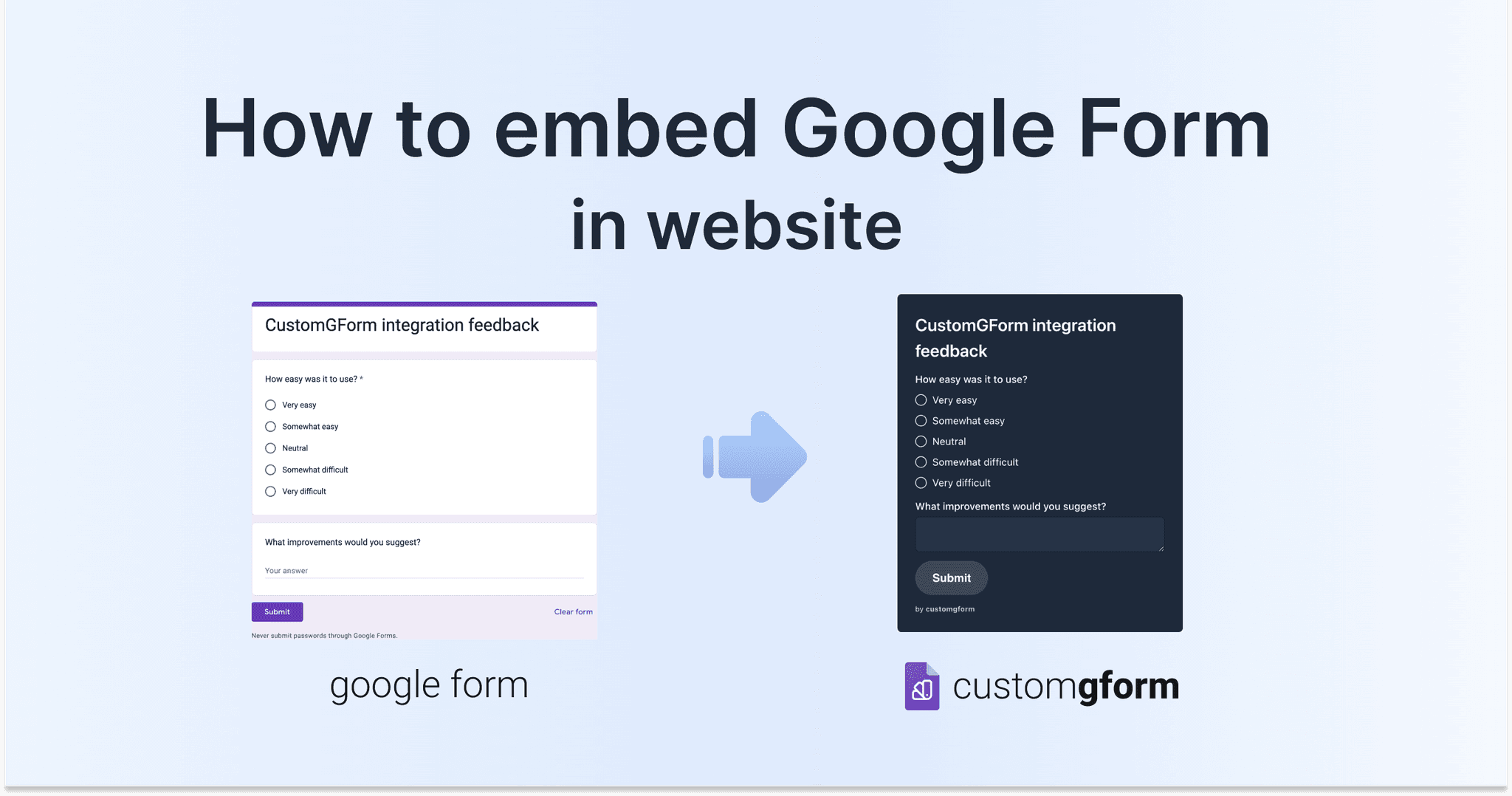
Yes. Google Forms gives you an <iframe> embed code (Send → < >), but the iframe keeps Google's styling and branding and uses a fixed height that often causes double scrollbars on mobile. To embed a form that matches your site, connect it to CustomGForm, customize the design, click Embed to website, and paste the generated snippet into any HTML, WordPress, or React page. Responses still go to your Google Form and its linked Google Sheet.
What Is Google Forms?
Google Forms is one of the most popular free tools for building web forms and collecting responses. It has an intuitive interface and powerful functionality out of the box.
Useful built-in Google Forms features:
- Unlimited form responses
- Get Email notifications for new responses
- Download responses in .CSV file or view in Google Spreadsheet
- Intuitive drag-and-drop form builder and much more
What Can You Use an Embedded Google Form For?
Google Forms offer a user-friendly platform that allows users to create customizable surveys, questionnaires, quizzes, and other types of forms for various purposes. Some common use cases and purposes for using Google Forms include:
- Event Registrations: Managing event registrations, attendance tracking for conferences, workshops, webinars, and social gatherings.
- Data Collection: Collecting data for research projects, market research, academic studies, or any situation requiring structured data gathering.
- Customer Satisfaction: Gathering feedback from customers to assess their satisfaction levels with products, services, or user experiences.
- Contact Forms: Providing a convenient way for website visitors to get in touch, submit inquiries, or request information.
- Polls and Voting: Running polls, voting contests, or opinion surveys to engage and interact with an audience.
- Lead Generation: Capturing leads and contact information for marketing purposes, such as email subscriptions or newsletter sign-ups.
Google Forms simplify and streamline the process of data collection and interaction with an audience, making them a versatile tool for individuals, businesses, educators, and organizations of all types.
How Do You Embed a Google Form With CustomGForm?
CustomGForm lets you embed Google Forms on your website with a custom design that matches your brand.
Follow these steps to embed a Google Form in your website with CustomGForm:
Step 1: Create a Google Form:
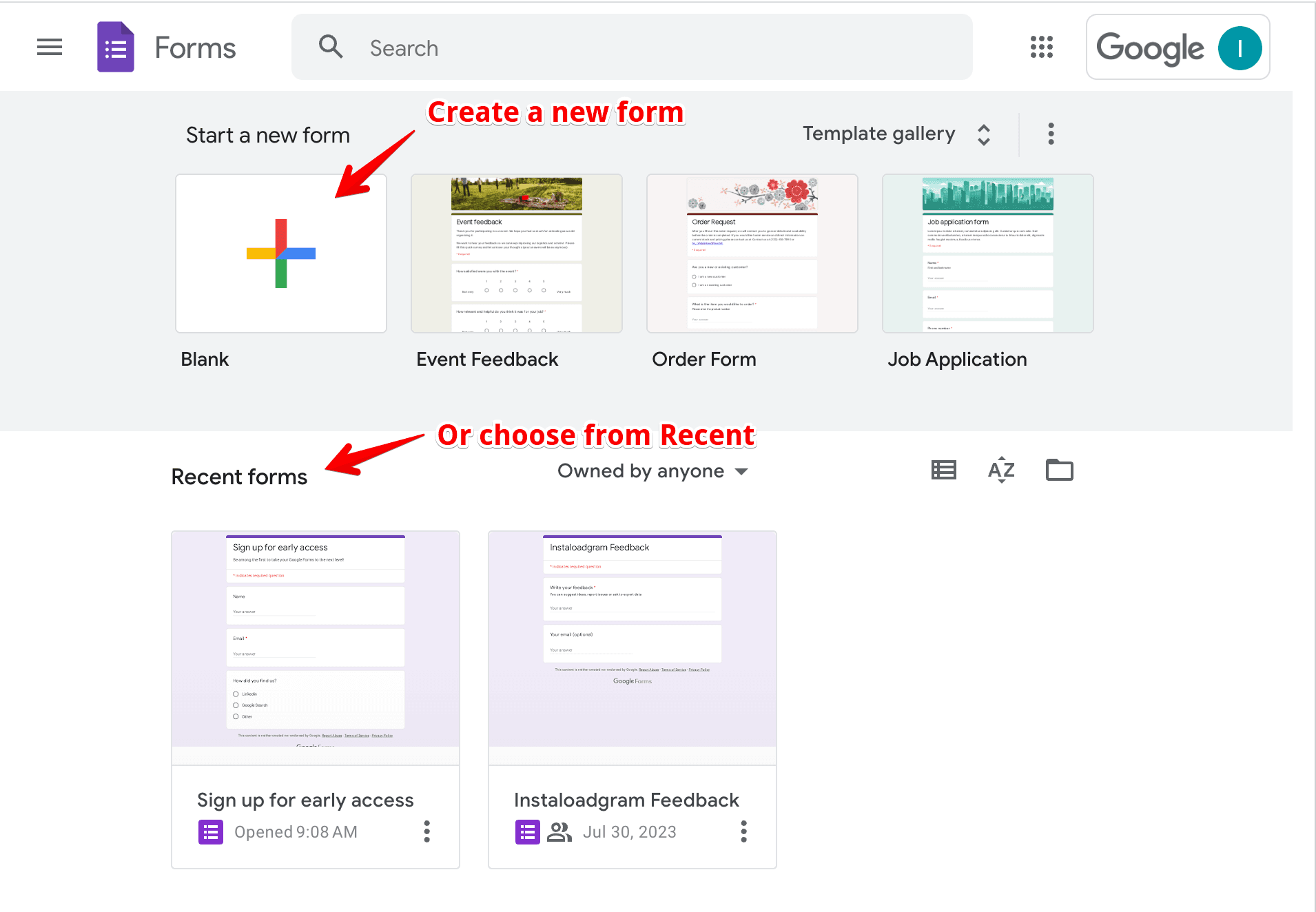
- Open Google Forms
- Start a new form or choose from existing Recent forms
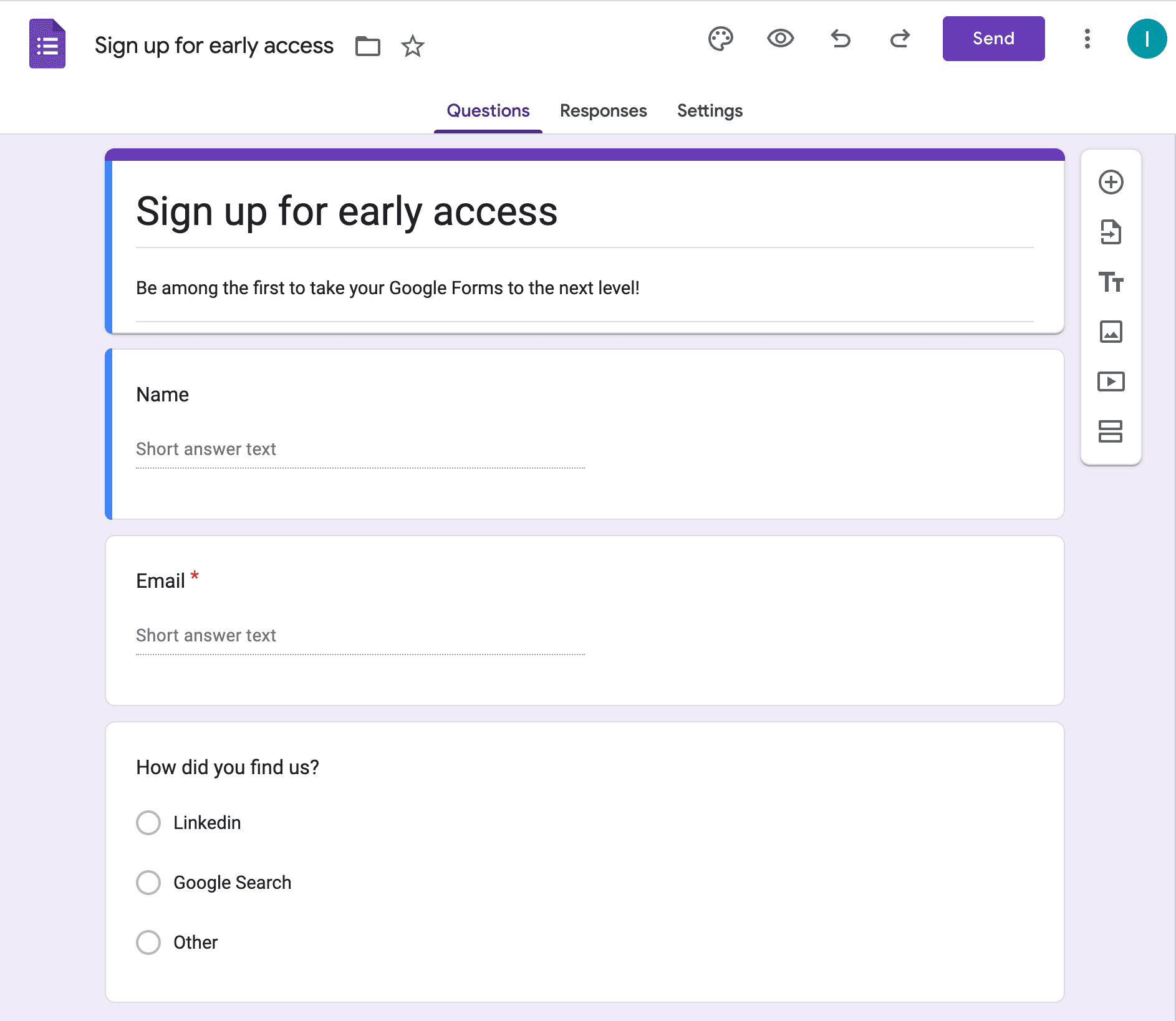
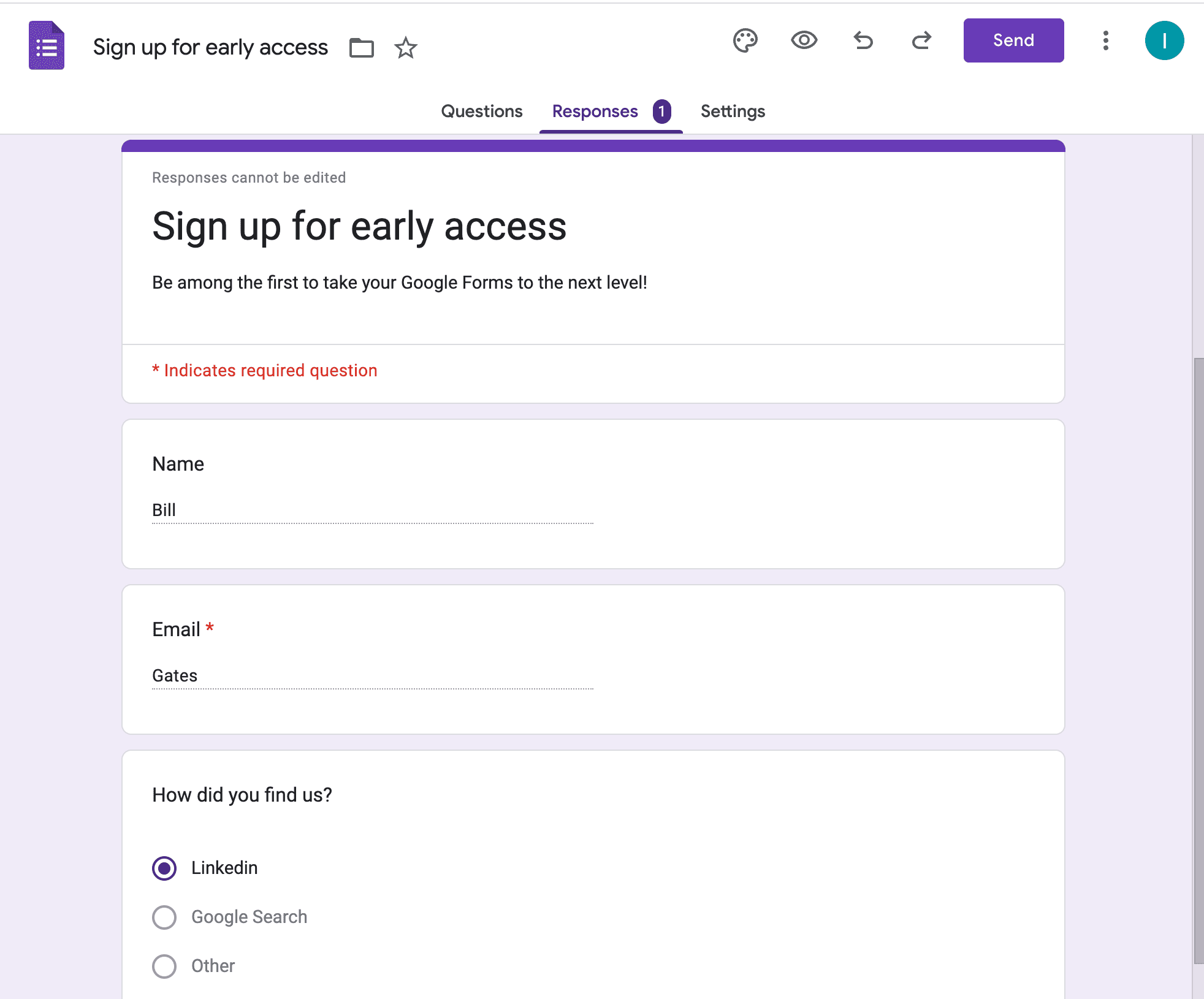
- In our case, we created Sign up for early access form with 3 questions: "Name", "Email" and "How did you find us?" radio buttons.
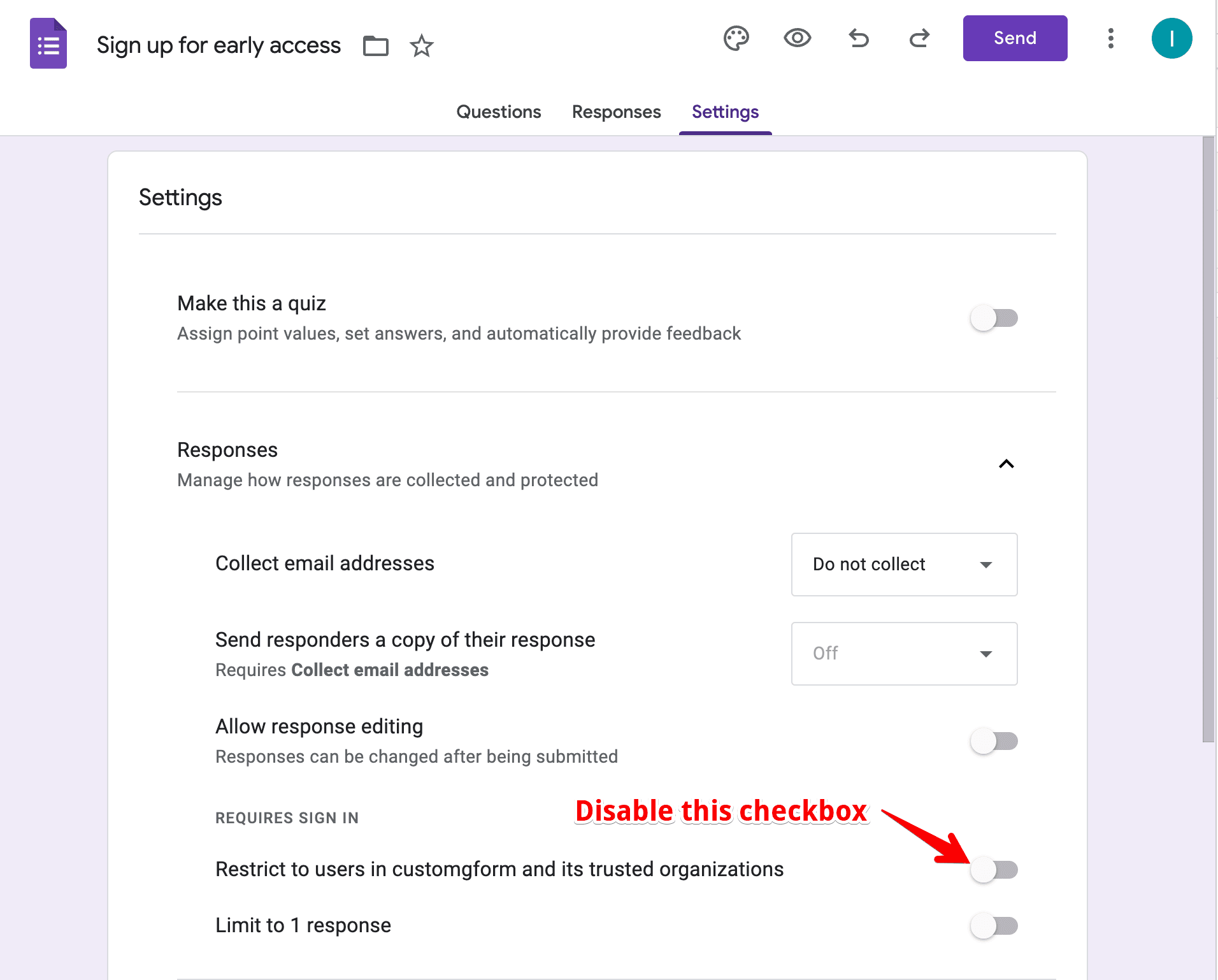
- Then, we need to make sure that form will be accessible for everyone.
- Go to the Settings -> Responses -> Restrict to users in [company name] and its trusted organizations
- And disable this option as on the screenshow below
- (Optionally) Now, you can preview Google Form and test it, to make sure that data collected as expected.
Step 2: Customize Google Form with CustomGForm
When you have created a Google Form, you can proceed with CustomGForm part.
- Go to CustomGForm and click on "Sign in" button.
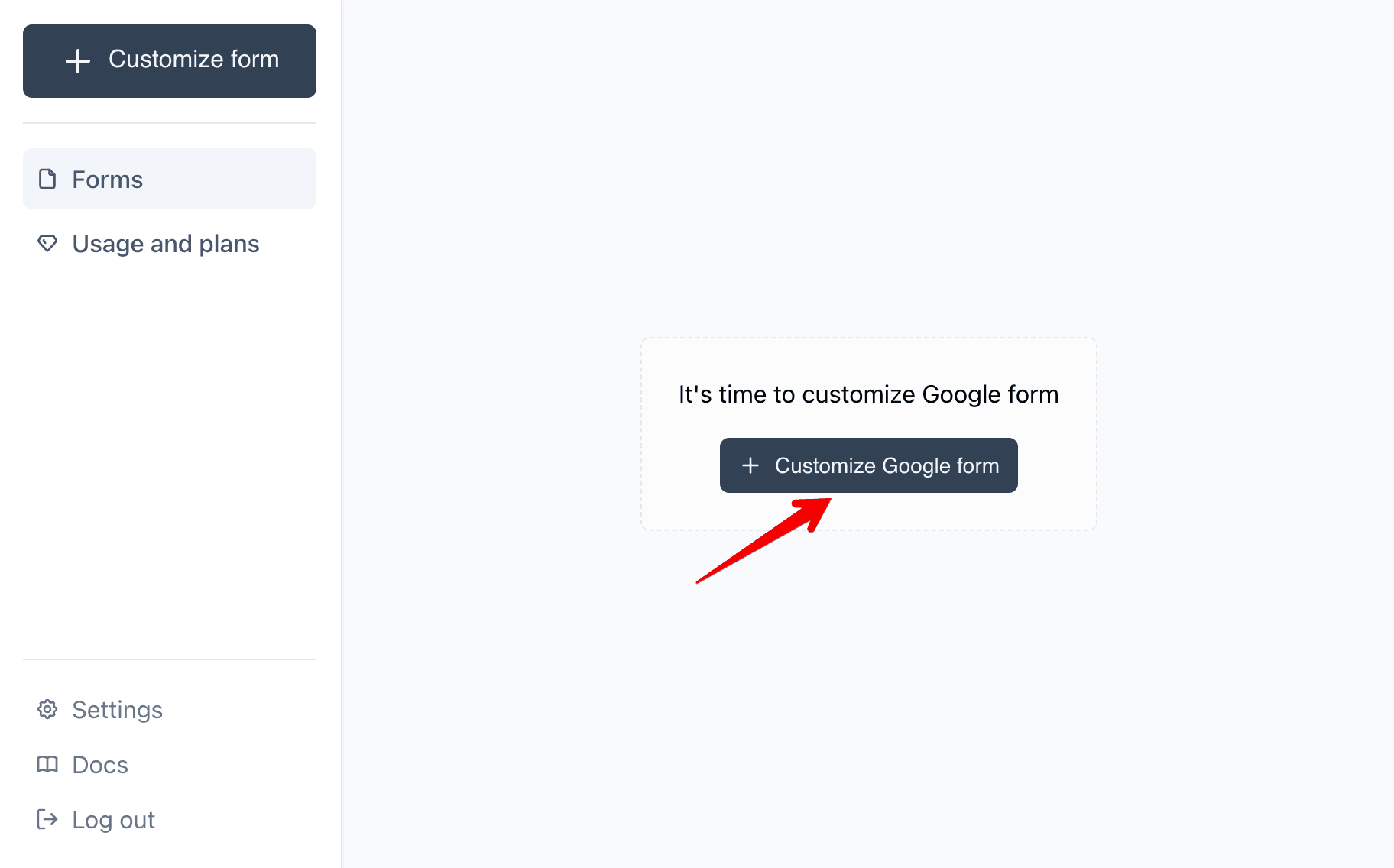
- On the Dashboard page, click to the "Customize Google form" button.
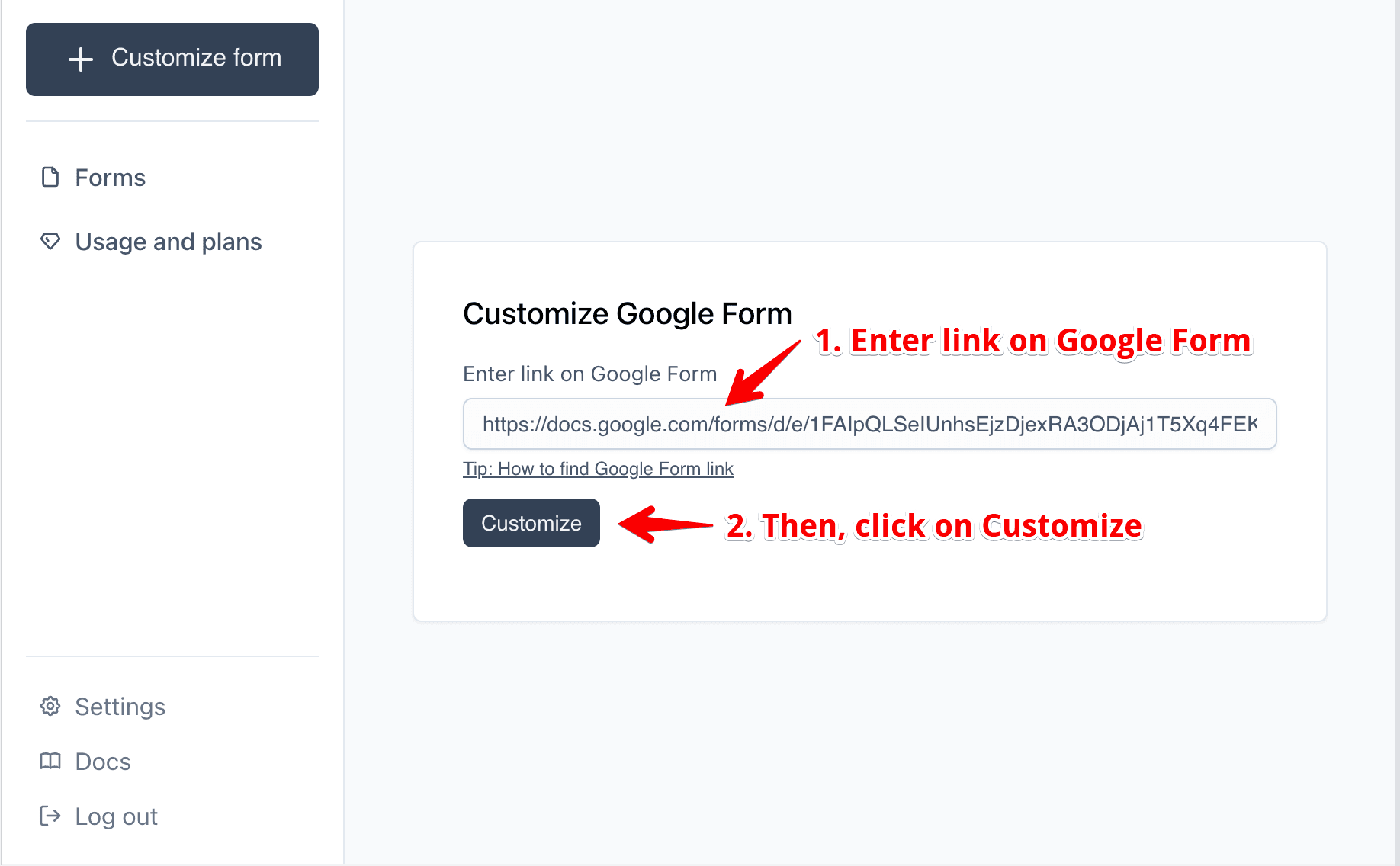
- Enter link on Google Form and click to the "Customize" button.
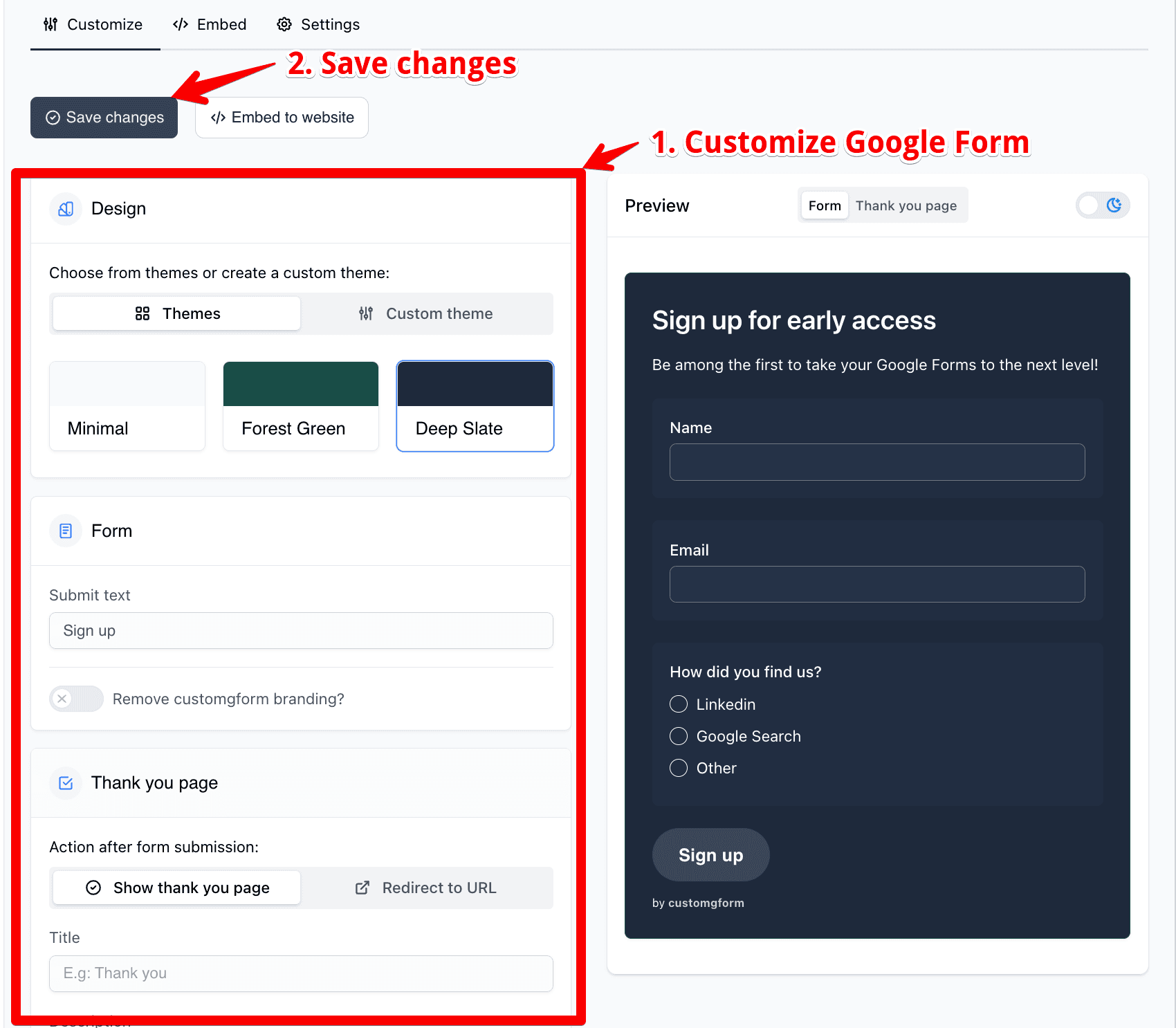
- Customize Google Form using CustomGForm customizer. Then, Save changes.
- Now let's continue with embedding form to the website.
Step 3: Embed Google Form in Website
Once your form is customized, it's time to embed it in your website.
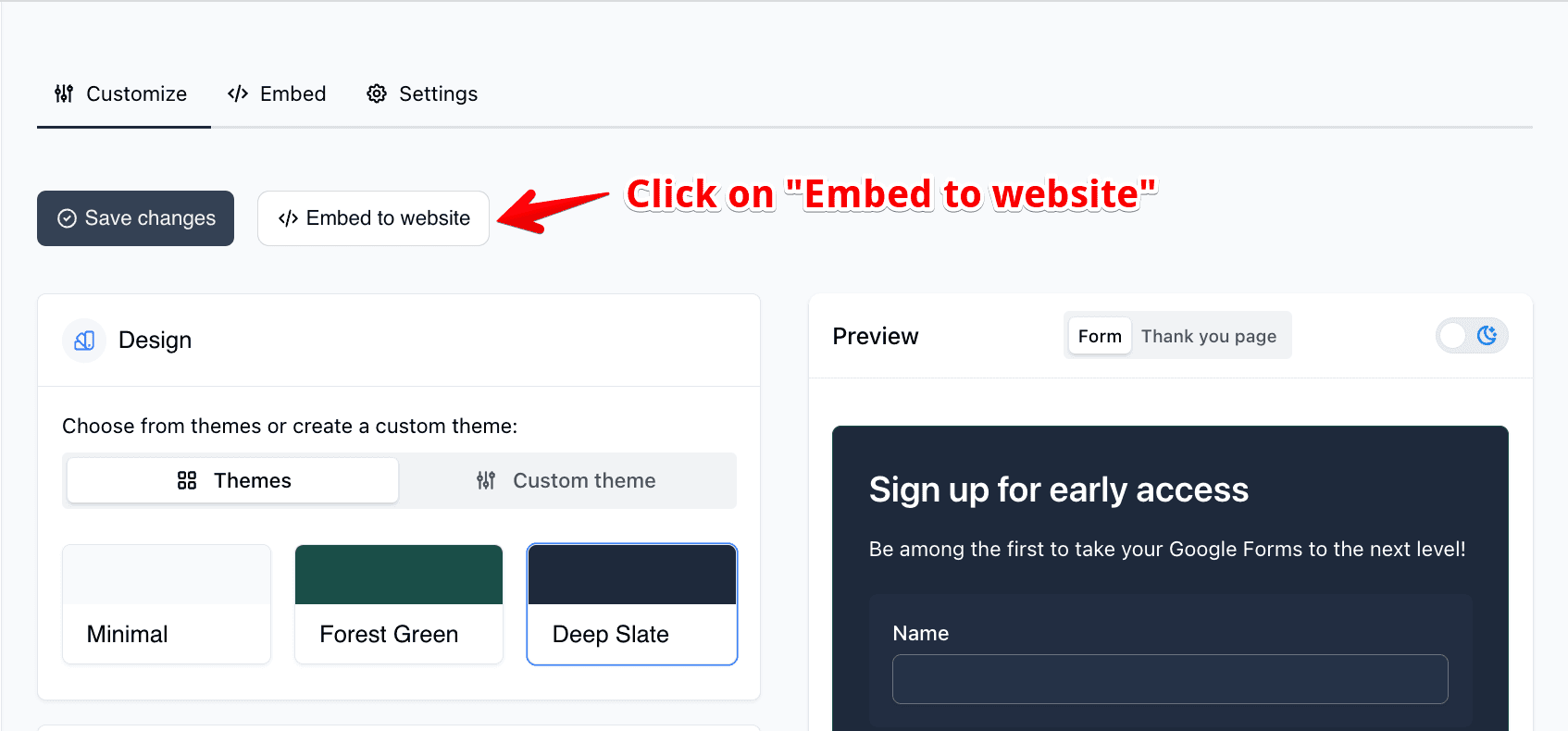
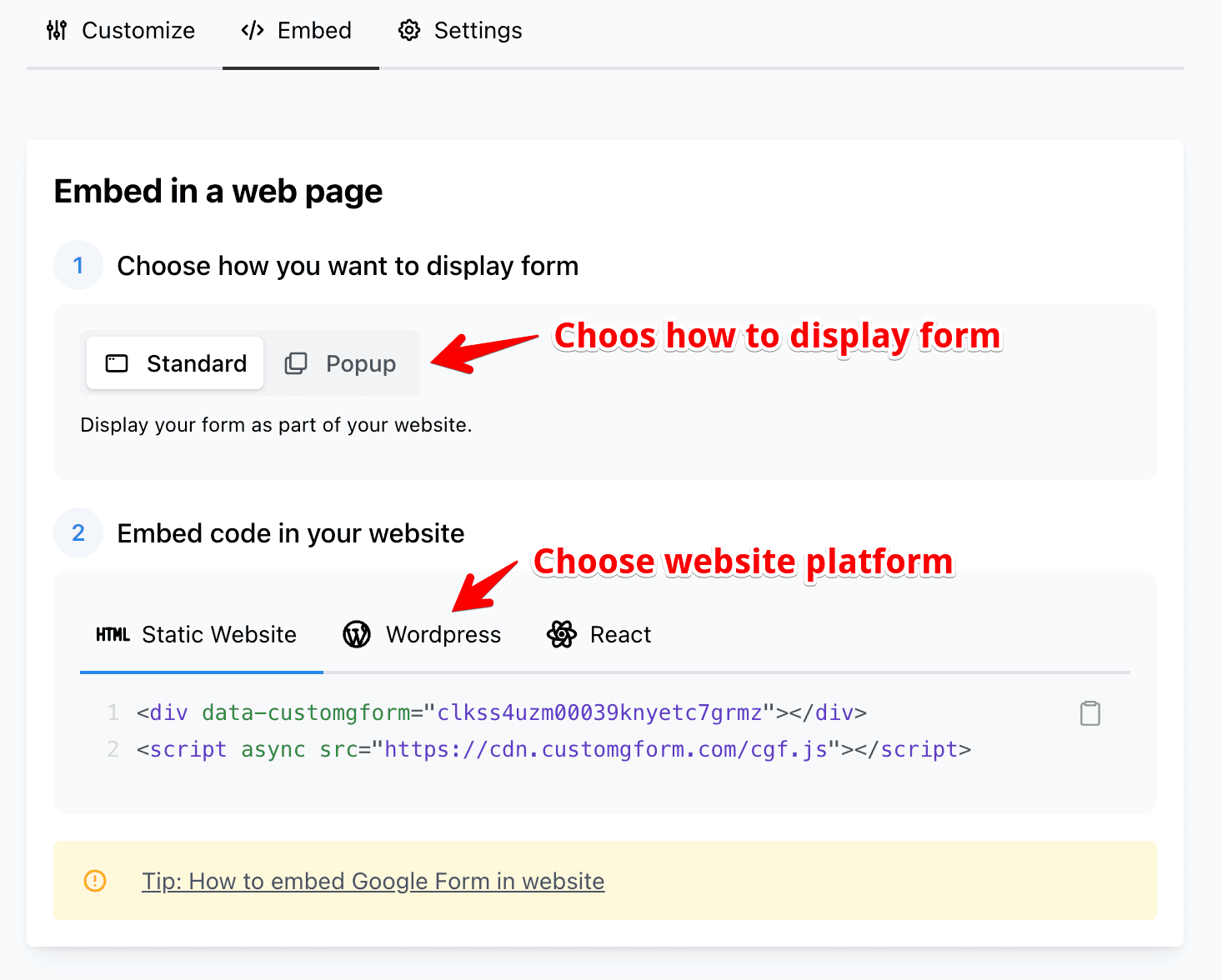
- Click to the Embed to website button.
- Choose how you want to display the form.
- Standard: display your form as part of your website.
- Popup: form pops up in the center of the screen
- Choose your platform. Available platforms:
- Static HTML Website
- WordPress
- React
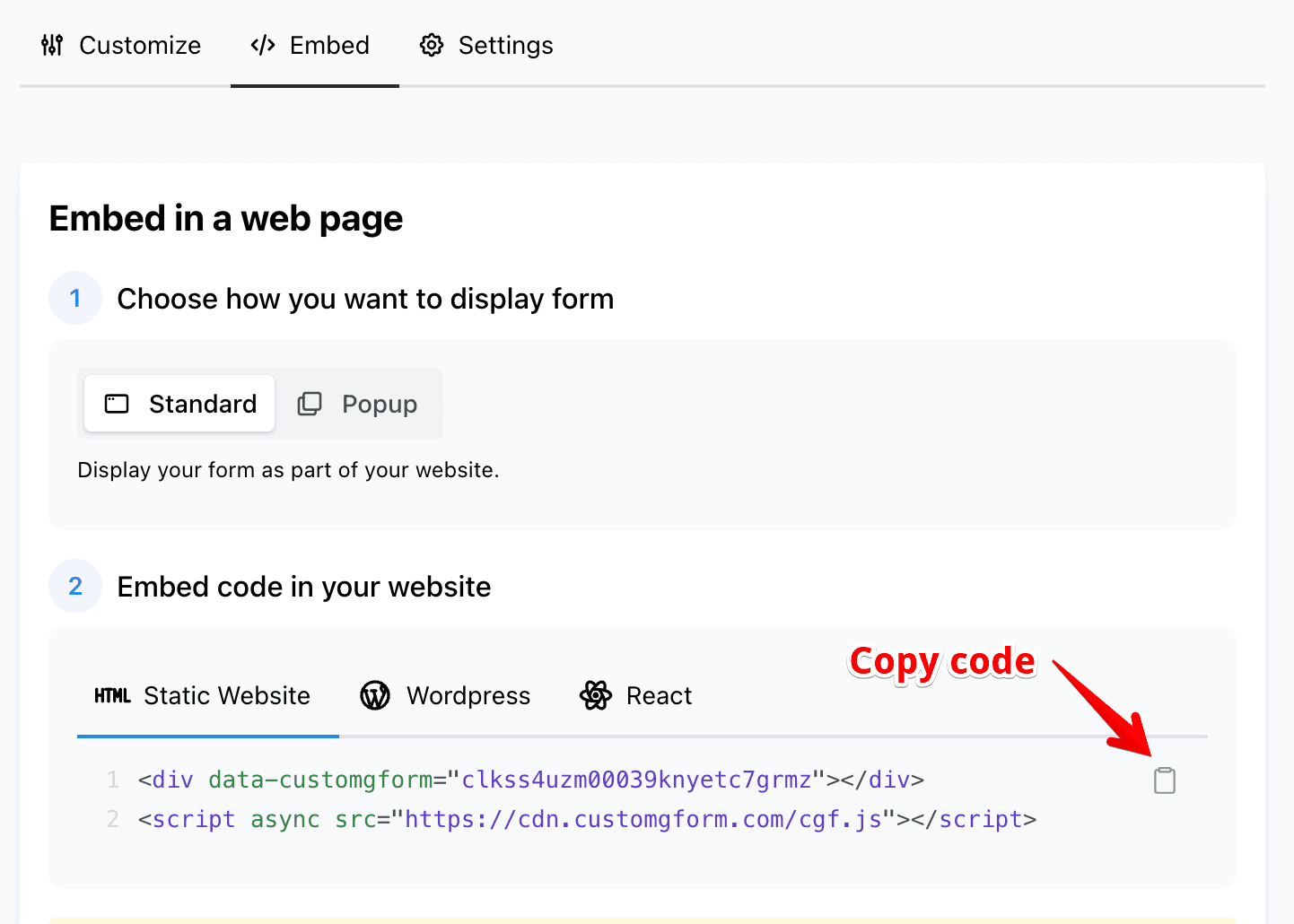
Let's say that we want to display Standard form and embed it to the HTML website.
- Copy code.
- Insert code into your website where you want to display form.
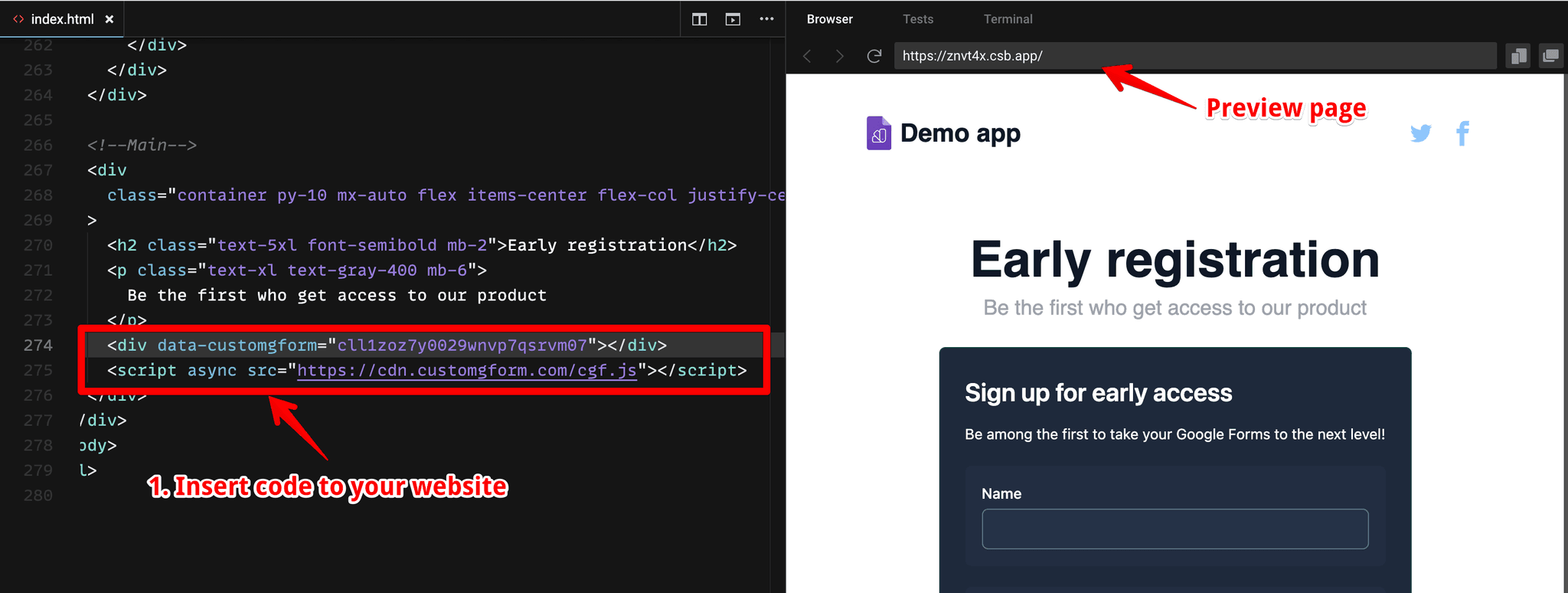
For this tutorial, we use CodeSandbox, but you can insert this code on any platform that supports HTML, such as Google Sites, Wix, Shopify, WordPress, Webflow, Framer, and more.
- That's it. Now you can test your form and see responses in the Google Form.

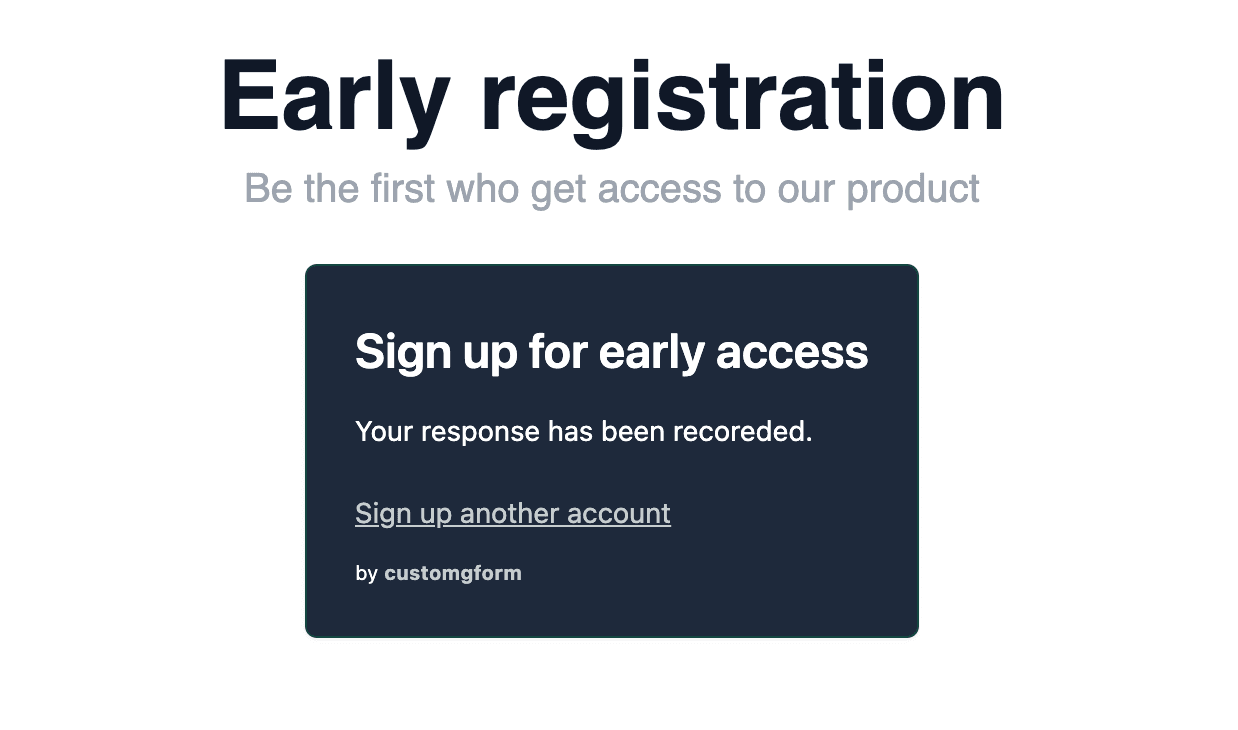
Hopefully, this article has given you a good introduction how to embed Google Forms with CustomGForm.
Feel free to ask any questions by leaving a comment below.
Platform-Specific Embed Guides
- Embed Google Forms in WordPress
- Embed Google Forms in Wix
- Embed Google Forms in Squarespace
- Add Google Forms to Shopify
- Style Google Forms in Webflow
- Embed Google Forms in Framer
- Embed Google Forms in Google Sites
- Embed Google Forms in Notion
- Embed Google Forms in Carrd
- Embed Google Forms in Ghost CMS
- Embed Google Forms in HubSpot CMS
- Embed Google Forms in Weebly
- Embed a Google Form in React
- Embed a Google Form in Vue
- Google Forms theme customizer
- Easy integration: one script tag, any site
- Remove the "by customgform" branding
Last updated on
How to Find Your Google Form Link (Responder URL)
Quick step-by-step guide to finding and copying your Google Form shareable link or responder URL to embed or customize it.
How to Add a Timer to Google Forms (No Add-on Required)
Learn how to add a tamper-proof countdown timer to Google Forms with auto-submission, anti-cheating protections, tab-switch tracking, and instant Google Sheets sync.