
How to Add a Barcode Scanner to Google Forms
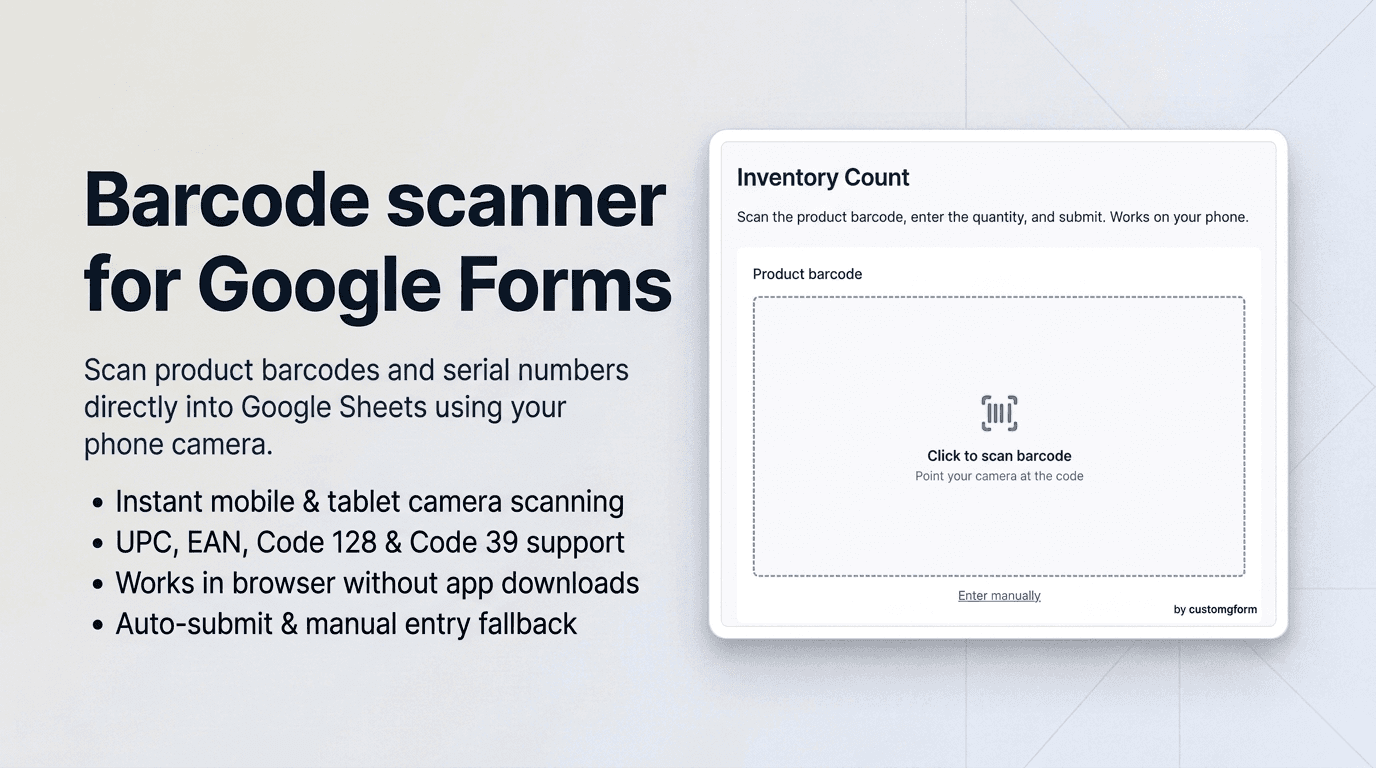
Google Forms is one of the most reliable and affordable tools for logging data, but it has a major hurdle for mobile operations: Google Forms does not offer a camera-based barcode scanner field.
If your team uses Google Forms for inventory audits, warehouse stock counts, asset tracking, or package receiving, you are likely stuck with inefficient alternatives:
- Typing 12-to-16 digit numbers manually, which is painfully slow and introduces typing errors into your Google Sheet.
- Using external scanner apps that export CSV files, requiring someone to manually merge or copy-paste data at the end of every shift.
- Purchasing costly inventory management platforms that charge thousands of dollars per year and replace the simple Google Sheets workflows your team already knows.
With CustomGForm, you can upgrade any standard Google Form text question into an interactive, camera-ready Barcode Scanner. Workers simply tap "Scan barcode" on their phone or tablet, point their camera at the product label, and the decoded barcode number is automatically captured and submitted straight into your connected Google Sheet.
Scan product barcodes and serial numbers directly into an inventory Google Sheet.
Watch a quick walkthrough on configuring camera barcode scanning for Google Forms.
Google Forms Native vs CustomGForm Barcode Scanner
| Feature | Native Google Forms | CustomGForm Barcode Scanner |
|---|---|---|
| Camera Barcode Scanning | ❌ No (Manual typing only) | ✅ Yes (Instant smartphone/tablet camera scan) |
| Supported Barcode Types | None | ✅ UPC-A, UPC-E, EAN-13, EAN-8, Code 128, Code 39, ITF |
| App Download Required? | ⚠️ Often requires 3rd-party apps | ❌ No (Runs directly in mobile web browsers) |
| Google Sheets Real-Time Sync | Text entries only | ✅ Immediate sync to designated spreadsheet column |
| Auto-Submit on Scan | ❌ No | ✅ Yes (Optional setting for rapid bulk scanning) |
| Fail-Safe Manual Entry | Standard input only | ✅ Hybrid mode: Camera scan with manual keyboard fallback |
| Hardware Scanner Support | Basic keyboard input | ✅ Compatible with Bluetooth & USB barcode guns |
Common Use Cases for Google Forms Barcode Scanning
Adding a camera scanner turns simple Google Forms into powerful field-ready business tools:
- Warehouse Inventory Cycle Counts: Staff walk the warehouse aisles, scanning bin labels and product boxes directly into an inventory log sheet.
- IT & Office Asset Management: Scan serial barcodes on company laptops, monitors, office chairs, and lab equipment during annual asset audits.
- Package Receiving & Delivery Check-in: Scan tracking numbers and shipping barcodes at reception or loading docks as shipments arrive.
- Retail Stock Replenishment: Floor clerks scan empty shelf tags to log items needing restock from backroom storage.
- Event Equipment & Tool Checkouts: Educational institutions and production studios track who checked out cameras, cables, and tools.
Step-by-Step Guide: Adding a Barcode Scanner to Your Google Form
Follow this quick 4-step walkthrough to activate camera barcode scanning on your Google Form.
Step 1: Create a text question in Google Forms
- Open your form in Google Forms.
- Click the (+) Add question button.
- Set the question type to Short answer.
- Label the question clearly (for example: "Product Barcode / SKU" or "Asset Serial Number").
- Mark the field as Required if scanning is mandatory for submission.
[!TIP] CustomGForm attaches the barcode scanner addon to standard Short Answer fields. Your connected Google Sheet will automatically reserve a dedicated column to store the scanned barcode string.
Step 2: Open your form in CustomGForm and enable the Barcode Addon
- Log into your CustomGForm Dashboard.
- Select your form (or import it by pasting your Google Form URL).
- If you just created the field in Google Forms, click Refetch Google Form in the top bar to sync your new question.
- Scroll to the Field Addons section in the builder.
- Click Add Field Addon and select your configuration:
- Target Field: Choose the Short Answer question you created in Step 1.
- Addon Type: Select Barcode Scanner.
Step 3: Configure your scanning behavior
In the addon settings panel, customize how the scanner behaves for your team:
- Auto-Submit on Scan: Turn this toggle on if you want the form to submit immediately upon reading a valid barcode. This is ideal for repetitive inventory scanning where staff only log one item per submission.
- Allow Manual Entry: Keep this enabled to ensure workers can still type a code if a barcode label is physically damaged or dirty.
- Audio & Haptic Feedback: Enable the audio beep and vibration confirmation so staff receive immediate physical feedback without staring at the screen.
- Click Save Addon and then Save Form.
Step 4: Share or embed the form and test live
- Copy your form's public CustomGForm URL or embed code from the Share tab.
- Open the link on a mobile device (iPhone, Android) or laptop with a camera.
- Tap the Scan barcode button.
- When prompted by the browser, allow camera permissions.
- Align any retail product barcode (like a cereal box, book, or soda can) inside the red aiming line.
- The barcode will be recognized within milliseconds, populating the field and submitting to your Google Sheet!
Best Practices for Accurate Warehouse Scanning
- Ensure Adequate Lighting: Smartphone cameras need sufficient ambient light to read high-density 1D barcodes. In dimly lit warehouse aisles, encourage staff to use their phone's built-in flashlight or position items under aisle lights.
- Maintain a Reasonable Distance: Hold the device 4 to 8 inches (10 to 20 cm) away from the barcode so the camera lens can achieve sharp optical focus.
- Use the Manual Fallback for Damaged Tags: If a barcode sticker is scratched or torn, staff can simply tap the text field and type the numbers printed beneath the barcode bars.
- Test with Real Sample Codes: Before rolling out the form to entire teams, test scanning a sample of your actual inventory tags to ensure your symbology (e.g., Code 128 vs UPC) is detected swiftly.
Frequently Asked Questions
What barcode formats can CustomGForm scan?
The scanner supports standard 1D barcode symbologies including UPC-A, UPC-E, EAN-13, EAN-8, Code 128, Code 39, and Interleaved 2 of 5 (ITF). It also supports 2D codes if scanned in hybrid mode.
Do respondents need to install any app or browser extension?
No. The barcode scanner runs natively inside standard modern mobile browsers (Safari on iOS, Chrome on Android, Edge, Firefox). Respondents do not need to download an app from the App Store or Google Play.
Does this require respondents to log into a Google account?
No! Unlike Google Forms' native file-upload field which forces respondents to log in, CustomGForm's barcode scanner works completely without requiring a Google sign-in.
Can we use handheld USB or Bluetooth barcode guns?
Yes. Handheld physical barcode scanners emulate standard keyboard entry. When a worker focuses on the field and pulls the scanner trigger, the scanned number enters directly into the field and submits according to your settings.
Related Guides
Last updated on
How to Add a Timer to Google Forms (No Add-on Required)
Learn how to add a tamper-proof countdown timer to Google Forms with auto-submission, anti-cheating protections, tab-switch tracking, and instant Google Sheets sync.
How to Add a QR Code Scanner to Google Forms (Step-by-Step)
Discover how to add a fast QR code camera scanner to your Google Form. Scan event tickets, passes, and visitor badges directly into Google Sheets.